Claude Skills for Google Ads: What They Are and How to Use Them
If you run a webshop on your own, you know the feeling: running your Google Ads is not the problem, the time is the problem. Combing through a search terms report, checking your feed for disapprovals, writing ad copy, putting together a weekly overview. Each one takes an hour or more, and each one comes back every week, on top of everything else on your plate.
That is where Claude Skills help. That same combing work, a search terms report, a feed check, a report, can take minutes instead of hours, and run the same way every time. With Claude Cowork you set those skills up so they are ready when you need them. The way to make this repeatable is called a skill. There is some confusion around that word: a lot of what gets called a "skill" is really just a prompt.
This guide explains what a Claude Skill actually is, how to set it up in Claude (with your exported data or through a live connection), and how to use it for Google Ads to save time. At the bottom you can download ten ready-made skills, with a few examples worked out so you can see how they work.
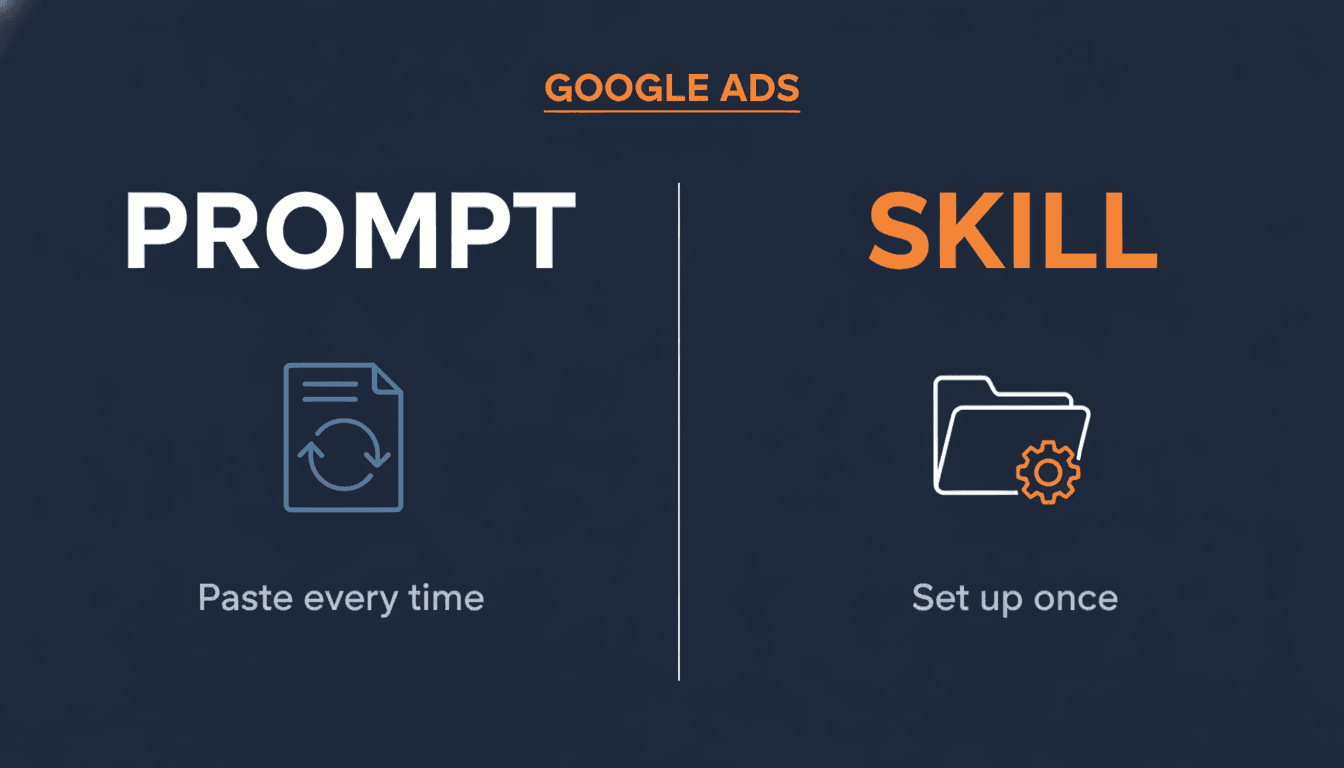
What is a Claude Skill (and what is a prompt)
First the distinction, because that is where most of the confusion starts.
A prompt is a piece of text you paste into Claude. Once, with your data attached, and you get an answer. Next time you paste it again.
A Claude Skill is a folder of instructions that always contains one file: SKILL.md, with the instructions in it, and optionally scripts and examples. You add that skill to Claude once. After that Claude picks it up itself whenever a task calls for it, without you pasting anything. Anthropic calls this progressive disclosure: Claude always sees the name and description of your skills, and only loads the full contents when it is relevant. A skill can also run scripts, not just generate text.
Skills work in the regular Claude chat (claude.ai), in Claude Cowork, in Claude Code and through the API. With a few conditions: you need code execution (a setting you turn on under Settings > Capabilities), and a skill you add in one place is not automatically in another. A skill you upload in claude.ai works in your chat and in Cowork, but does not become available through the API on its own. For a webshop owner working in the Claude app, that is not a problem: you add the skill once and use it there.
The practical difference with a prompt: a prompt is a one-off instruction, a skill is a fixed way of working that Claude remembers and applies itself. For a task you do once, a prompt is fine. For work that comes back every week, and that is most of the work in Google Ads, a skill is more convenient.
The structure of a skill
A skill is simpler than it sounds. It is a folder with a SKILL.md file, and that file holds three things:
At the top a name and short description (in the frontmatter). This is what Claude always sees, so it knows when to use the skill.
Below that the instructions: the role Claude takes on, what exactly it should do, what input it gets (a CSV export, a feed file) and what the output should look like (a table, a report).
And optionally extra files: an example, a script, a reference list. Claude only loads those when it needs them.
No code required. You write it in plain language, the way you would explain a recurring task to a colleague. The example prompts further down are exactly that instruction core.
Getting your data into Claude: three ways
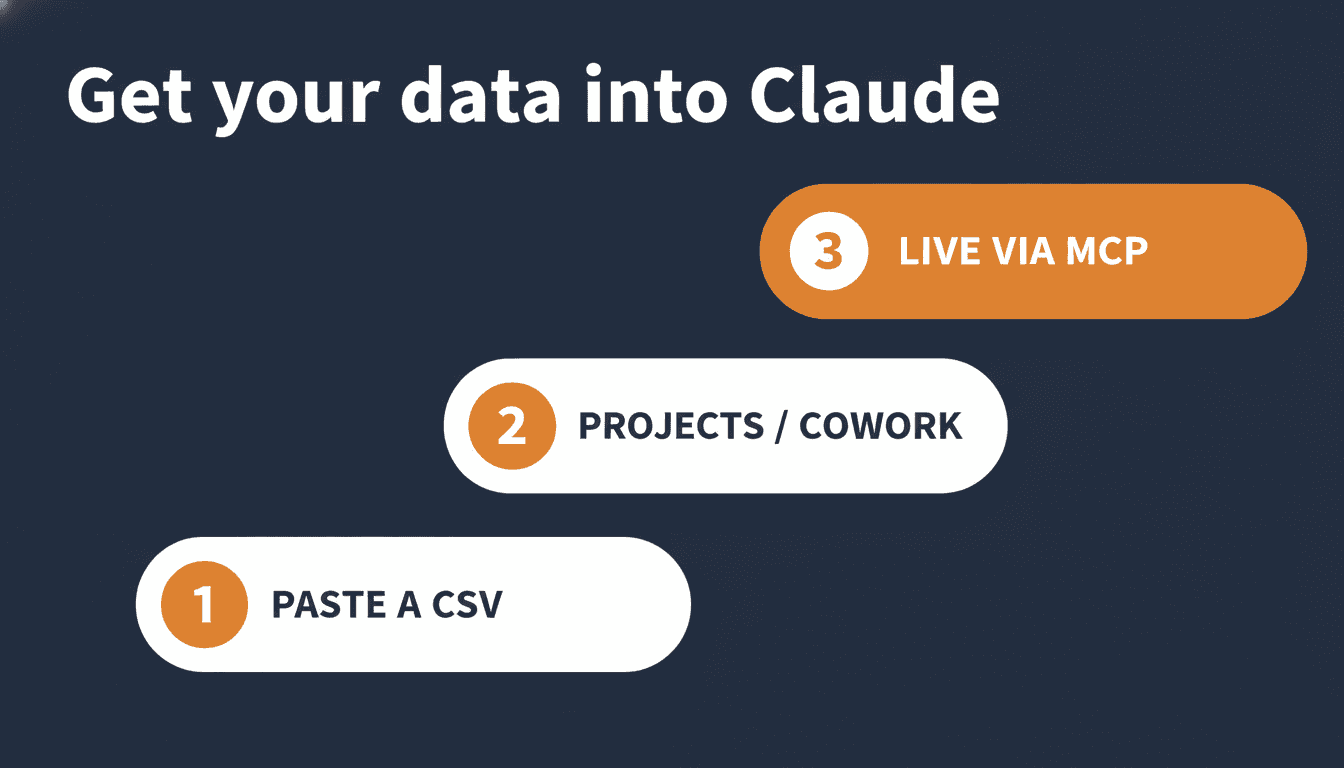
A skill is nothing without your data. There are three ways to get Claude to your Google Ads numbers.
1. Paste or upload. Export your search terms, your products or your campaign data as a CSV from Google Ads or Merchant Center, and upload it in a conversation. Paste the skill prompt with it. This works with any Claude plan and is enough for a weekly or monthly analysis.
2. Claude Projects or Cowork. In a Project or in Cowork you set your skills up once, so they are available in every conversation without pasting again. You still upload your CSV, but your skills stay in place.
3. A live connection through MCP. MCP (Model Context Protocol) is the protocol Claude uses to connect to external tools and data. With it Claude pulls your numbers live, without an export. This is useful if you want to monitor daily.
A Google Ads connection provided by Google itself does not exist right now. The live connections you come across come from third parties or are self-hosted. For a weekly analysis that is not needed: pasting a CSV export works and costs nothing. The live connection is mainly interesting if you want to look in every day.
A sensible order: start by pasting. If you use a skill weekly, set it up in a Project or in Cowork. If you want to monitor daily, then look at a live connection.
How you use a skill for Google Ads
In practice it looks like this. You have a recurring task, say your weekly search terms cleanup. You export the search terms report, you open Claude, you give it the skill (or paste the prompt) and you attach the CSV. Claude reads the data, follows the instructions in the skill and returns a structured result: a table of what you can block, what you can scale, and what to keep an eye on for now.
The win is in the repeatable. The first time, setting up the skill takes some effort. After that you run the same analysis every week in minutes, in exactly the same way, without having to figure out again what it was you wanted to ask. An account audit that takes half a day by hand, or a feed of thousands of products you could never check yourself, becomes a matter of a few minutes. For someone running their shop alone, that is the difference between getting to optimization and not getting to it.
What Claude is strong at: combing through data. Ploughing through an export of thousands of search terms or products for patterns, finding outliers, returning a prioritized list. Where you stay in charge: the decision. An audit shows what stands out, but whether you pause a campaign or lower a target depends on your margins, your stock and your season, things the skill does not know. Use the skills for the time-consuming analysis work, and make the decisions yourself.
Ten skills you can download
I have prepared ten skills for Google Ads and Google Shopping, free to download from the tools page. Below is an overview, with a few examples worked out so you can see how a skill is built. Each example prompt can be pasted into Claude on its own to try it.
For Google Shopping and your product feed:
With Shopping and Performance Max you do not advertise with keywords but with your products, and which products Google shows is largely determined by your product feed. That is why two skills look specifically at that feed.
The Shopping Feed Auditor checks your product titles, descriptions, categories, images and required attributes for issues that cause disapprovals or weak performance.
You are a Google Shopping feed specialist. Analyze my product
feed export (attached). Return:
1. Products that are disapproved or have a missing/incorrect
   value (price, availability, GTIN), with the reason.
2. Titles that miss the main keyword, or that contain promo
   text, capitalization or keyword stuffing.
3. Products with a too-generic product_type or
   google_product_category.
Output as a table, sorted by estimated impact, plus an improved
title for the top products.
The Performance Max Auditor reviews your PMax asset groups, audience signals and settings, and gives a grade plus the fixes to do first. If you want to understand what the algorithm actually runs on before you audit it, the Performance Max guide for ecommerce covers the feed layer, campaign structure, and bidding in full.
For your Search campaigns and your account:
The Search Terms Analyzer splits your search terms report into terms to scale, to block and to test.
You are a Google Ads analyst. Analyze my search terms report
(attached). Sort the terms into:
1. Winners: conversions below your target CPA, ready to add as
   exact or to scale.
2. Losers: 25+ in spend or 50+ clicks with no conversion, with
   the match type to block as a negative.
3. Potential: high CTR, no conversion yet, worth testing.
Output as a table per category, with the monthly saving.
The Account Audit runs your account through ten areas (structure, settings, keywords, ad copy, tracking, budget and more) and estimates the wasted spend. The Ads Report Generator turns your numbers into a readable weekly or monthly report.
You are a performance analyst. Here is my campaign data for this
week versus last week (attached). Write a short weekly report:
1. Summary in 3 sentences: spend, conversions, CPA, ROAS.
2. Table with the key figures and the week-over-week change.
3. What stands out: any change above 15%, with a possible cause.
4. 3 concrete action items for next week.
Write in plain language, with real numbers.
The rest of the set fills this in: a Negative Keywords Analyzer for an import-ready block list, an RSA Generator for ad copy that sounds human rather than robotic, a Landing Page Auditor that lines up ad, keyword and page, and an Ads Funnel Builder for the strategy from awareness to repeat purchase.
Download or build your own. The examples above are the instruction core. The full skills, as a ready-made
SKILL.mdfile with output templates, are free on the tools page. You add such a skill in Claude under Customize > Skills (turn on code execution under Settings > Capabilities first), or you paste the prompt on its own to test quickly. You can also use the files as a basis to build your own version.
The Shopping chain, and where skills look
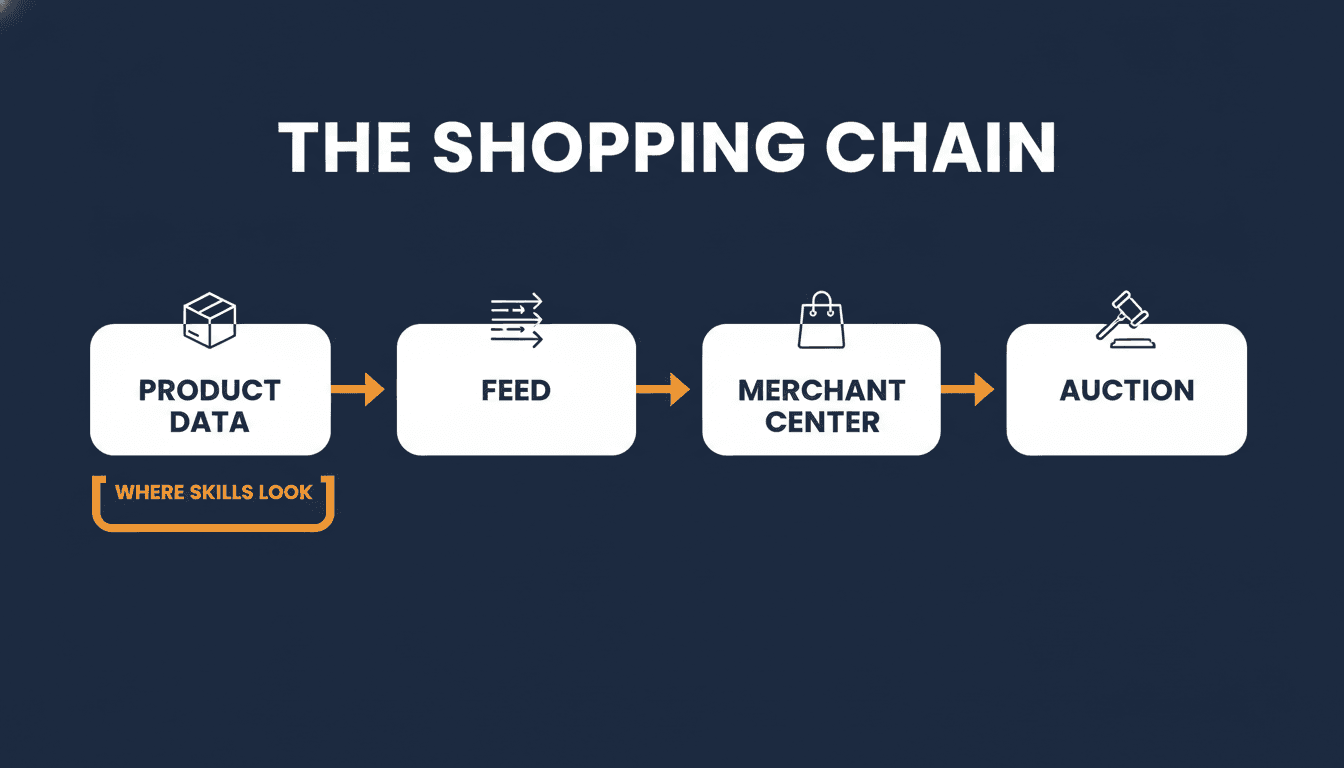
This is why the two feed skills matter for a webshop. In an e-commerce account it is one chain: your product data goes into the feed, the feed goes to Merchant Center, Merchant Center feeds the Shopping and Performance Max auction, and only then do your bid strategy and budget come into play. A weak link at the front spoils everything behind it. A skill that only looks at the end of that chain misses where the money really leaks.
One of the most overlooked weak links is the product title. Google rewrites more than 90% of Shopping titles, but always builds from what you supply. If you want to understand how that chain works and what you can do about it, Google Shopping title optimization covers exactly that.
Things to keep in mind
A few things to keep in mind as you start working with skills.
A skill works on the data you give it, and that data has limits. An export from Google Ads or Merchant Center holds your performance figures, but not everything you need for a decision. Your stock, your purchase prices and your margin per product are not in it. A skill can see that a product costs a lot of budget without converting, but not that it is actually your best-selling product with the highest margin. Provide the full reports, with all columns, and bear in mind that the skill sees figures you do not, but not the context you do.
Skills analyze, they do not act on their own. This is important to be clear on up front. When you paste an export into Claude, you get an analysis back: what stands out, what you could do. Claude does not change your campaigns automatically and does not optimize 24/7 in the background. You keep the overview and make the changes in Google Ads yourself. For most webshop owners that is exactly right, you keep control, but do not expect a system that works on your account on its own.
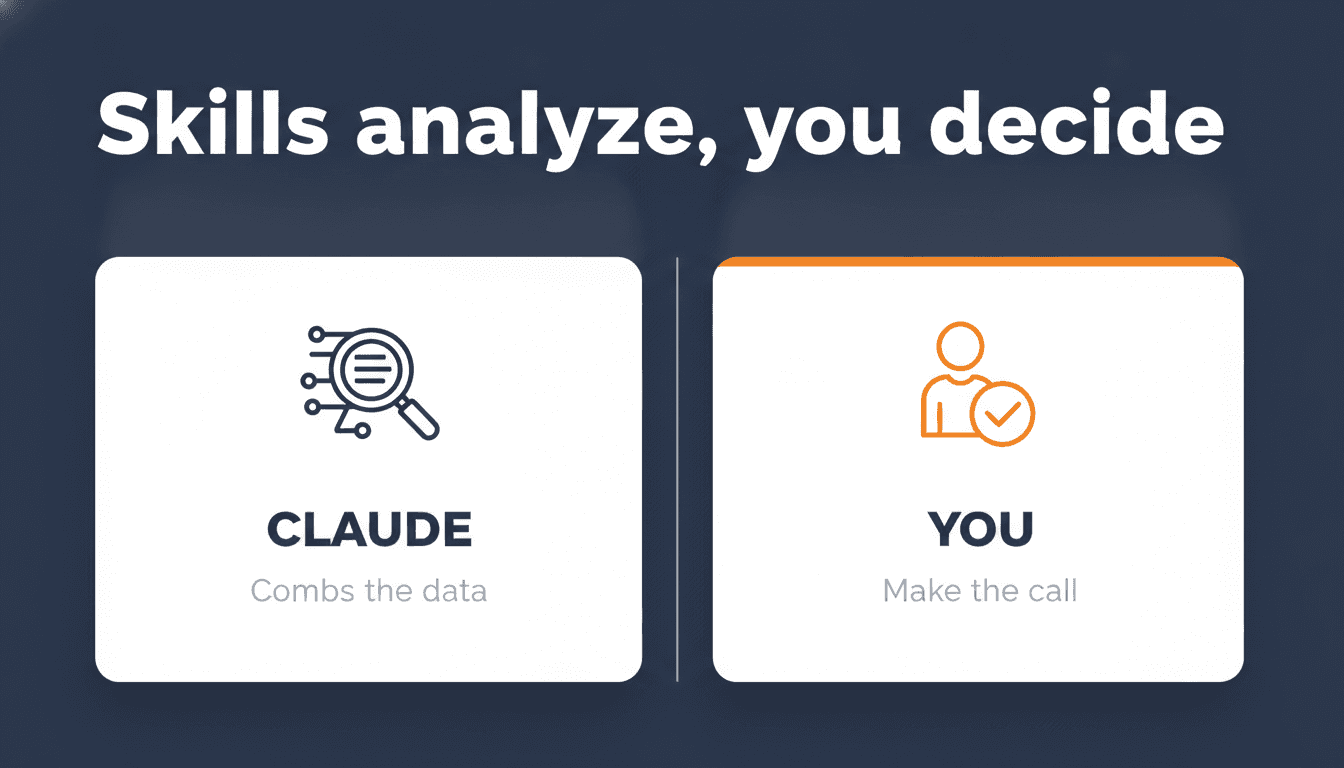
A skill does not replace your judgment. It finds what stands out; you decide what to do with it. That goes double for advice on budget and bidding, where your margins, stock and goals are decisive, exactly the things that are not in the export.
And factor in the cost. Skills run on code execution, and that works best on a paid Claude plan (Pro or higher). You can start small, but for anyone working with it weekly, a subscription is part of the math. Weigh it against the time you save.
And finally: the result is only as good as the instruction. A vague prompt gives a vague answer. The more specific you are about the input you give and the output you want, the more usable the result. That is exactly why a worked-out skill is nicer to use than a loose question every time.
Summary
A skill is a fixed way of working that you set up once and that Claude then applies itself, unlike a prompt you paste in every time. For recurring Google Ads work that saves time and keeps your analyses consistent.
You do not need a complicated setup for it: exporting a CSV and pasting it into Claude is enough to start. Skills are strong at combing through data; the decisions stay with you. And for anyone running their shop alone, that is mainly time gained: the work that would otherwise sit undone now gets done too.
If you want to go beyond loose skills, you can tie them together into a fixed system where your data, your skills and your recurring tasks come together. That is what PPC OS does: a complete setup to run your e-commerce Google Ads with Claude. For now, the ten skills are a fine starting point.
Getting started. Download the ten Google Ads skills from the tools page (free), pick one that fits a task you now do by hand every week, and run it on your own export. That way you see in a single session what a skill does for your work. If you want the whole system around it, look at PPC OS.
Frequently asked questions
Is a Claude Skill the same as a prompt?
No. A prompt is text you paste in every time. A skill is a folder with a SKILL.md file that you add to Claude once, after which Claude picks it up itself whenever a task calls for it. For one-off work a prompt is fine; for tasks that come back every week, a skill is more convenient.
Do I need Claude Code, or does this work in the regular Claude app? Skills work in the regular Claude chat (claude.ai) and in Claude Cowork, not just in Claude Code. You add a skill under Customize > Skills and first turn on code execution under Settings > Capabilities. A skill you add in the app is not automatically available through the API, but for daily use in the app that does not matter.
Can Claude connect to my Google Ads account live? It can, through MCP, a connection that gives Claude live access to your data. A connection provided by Google itself does not exist at the moment; the available options come from third parties or are self-hosted. For a weekly analysis a live connection is not needed: pasting a CSV export works and costs nothing.
Does Claude change my campaigns automatically? No. Skills analyze your data and give recommendations, but they do not act on your account themselves. You make the changes in Google Ads yourself. So you keep control, and no system works on your campaigns on its own.
Do I need to know how to code to use skills? No. You write a skill in plain language, and the ten skills on the tools page can be downloaded and added ready-made. You do need a Claude plan with code execution; that works best on a paid plan.
About the author

Auke Jongbloed
Auke Jongbloed is a Google Shopping and product feed specialist. He builds a product feed manager for WooCommerce, and works directly with ecommerce store owners on Google Shopping and Performance Max setups via aukemarketing.com. Follow him on LinkedIn for more on Google Shopping and feed strategy.
Free tools
Get the free tools built from real feed work
Scripts, checklists, and skills built from running real feed accounts and a WooCommerce feed plugin, not theory. No course, no upsell, no email required for most of them.
See the free tools