Ultimate Performance Max Guide for eCommerce: Fix Your Feed First (2026)
Most Performance Max guides lead with campaign setup, bidding strategy, asset groups, audience signals. That's the wrong place to start for ecommerce.
Performance Max is an automated system. It doesn't create good results out of nothing, it scales whatever you feed it. Clean product data scales profit. A broken or thin feed scales waste, faster and across more channels than Standard Shopping ever could.
This guide is built around that one fact, in this order: what PMax actually reads from, what to check in your feed before you touch a single campaign setting, when to use PMax at all, how to structure it once you do, and what changed in 2025 and 2026 that most current guides still get loose. If you're looking for a shortcut to "set it and forget it," this isn't it. Any PMax setup that pretends you can skip feed quality, tracking, and diagnostics will look good in the Google Ads UI long before it feels good in your bank account.
Key insights
- Performance Max scales whatever you feed it. Run the feed gate (disapprovals, titles, product_type depth, GTINs, custom labels) before touching a single campaign setting, not after.
- Don't launch or judge Performance Max below roughly 30 conversions a month (50 if you're on Target ROAS). That's Google's own Smart Bidding floor for the algorithm to have enough data, not a vague "20 to 30" rule of thumb.
- Since October 2024, Ad Rank decides which campaign wins the auction, not campaign type automatically. A well-optimized Standard Shopping campaign can now outrank PMax on the same product, which is what makes running both worthwhile.
- You can now truly exclude your existing customers from a PMax campaign (Customer Match and Website Visitor lists), not just signal the algorithm toward them. Use it to build a genuine acquisition-only campaign.
- Treat "video adds 25 to 40% better performance" as an industry rumor, not a Google statistic. Use video because it's good practice, not because of a number nobody can trace back to Google.
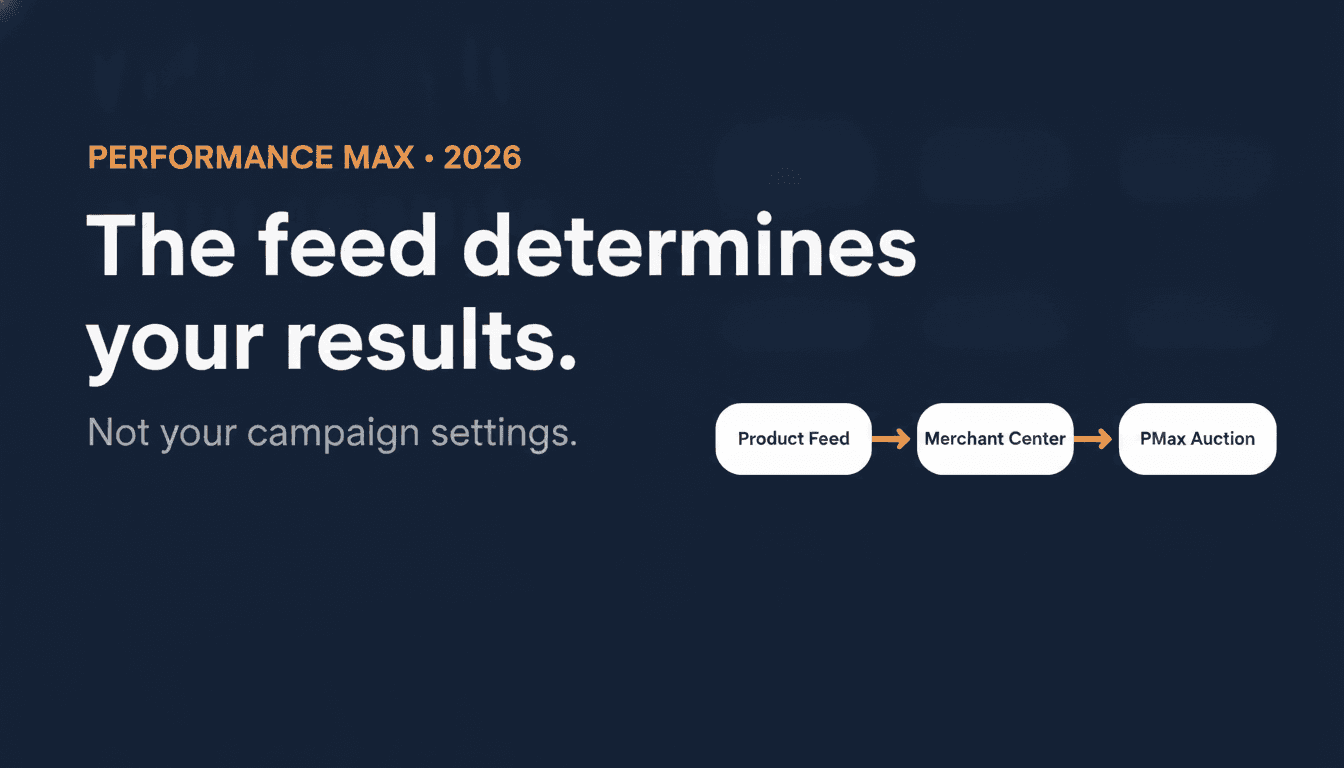
What Performance Max actually reads from
Performance Max is Google's campaign type that runs from a single setup across Search, Shopping, YouTube, Display, Discover, Gmail, and Maps. Google describes it as using AI "across bidding, budget optimization, audiences, creatives, attribution, and more" (source). That word, "across", is the point: PMax optimizes all of those channels together, not each one separately.
For ecommerce, the algorithm draws on four real inputs: your product feed, your conversion tracking, your creative assets, and your audience signals. All four matter. But the feed is the spine everything else hangs off, because for many ecommerce accounts, Shopping placements drive the bulk of purchase conversions, and those placements are matched directly against your Merchant Center product data, not your website, not your ad copy.
The sequence looks like this: your store catalog feeds your product feed, your product feed feeds Google Merchant Center, Merchant Center data (along with your conversion goals and bid strategy) enters the PMax auction, and the auction decides your bid.
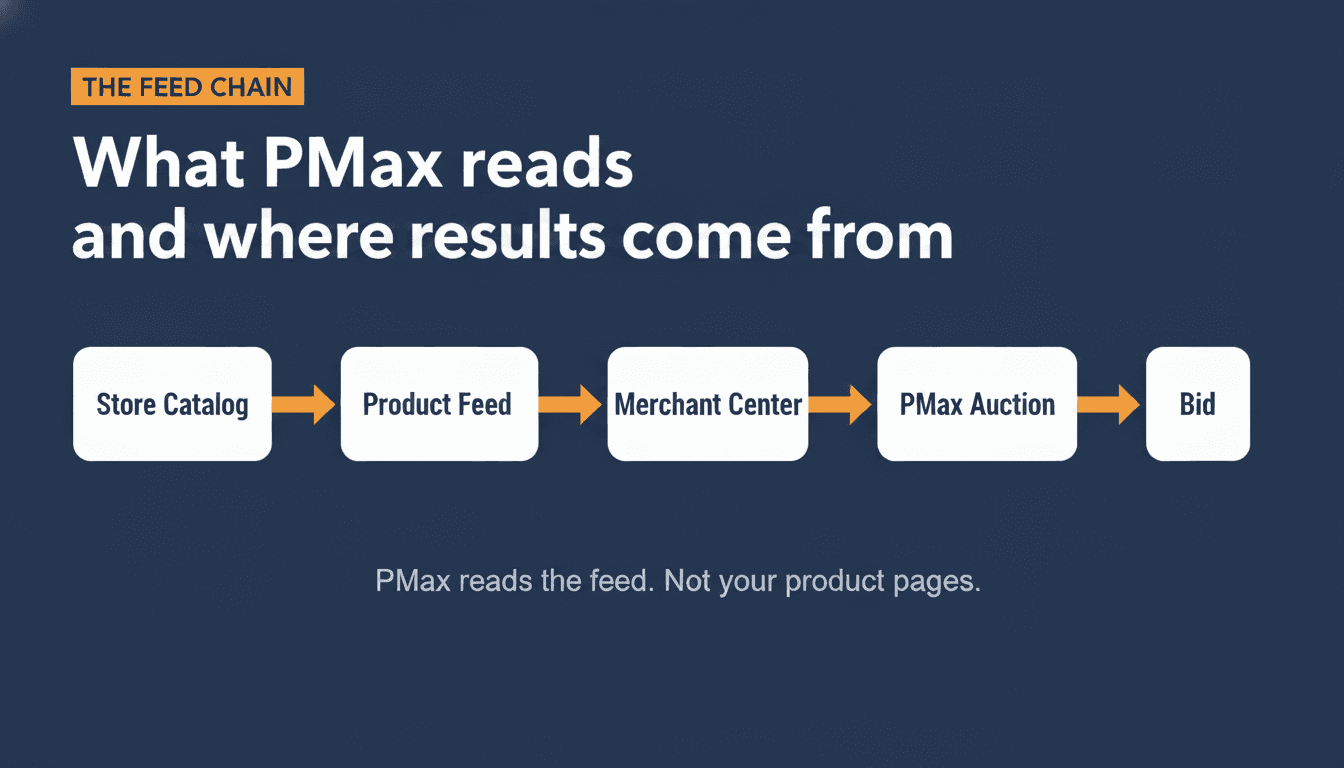
If your titles are generic, your GTINs are missing, or your product_type is one level deep, PMax cannot match your products to search queries with any confidence. In practice, PMax often falls back on broader signals: you see more spend shift into Display and YouTube, less into Shopping, and a tilt toward lower-intent traffic overall. Strong assets, clean conversion tracking, and good audience signals are multipliers, but they only pay off once the product data itself is clear and complete.
The feed gate: what to check before you touch a single campaign setting
Before you create an asset group, choose a bid strategy, or even open the PMax setup wizard, run through this. It takes under an hour and it determines whether anything else in this guide will work.
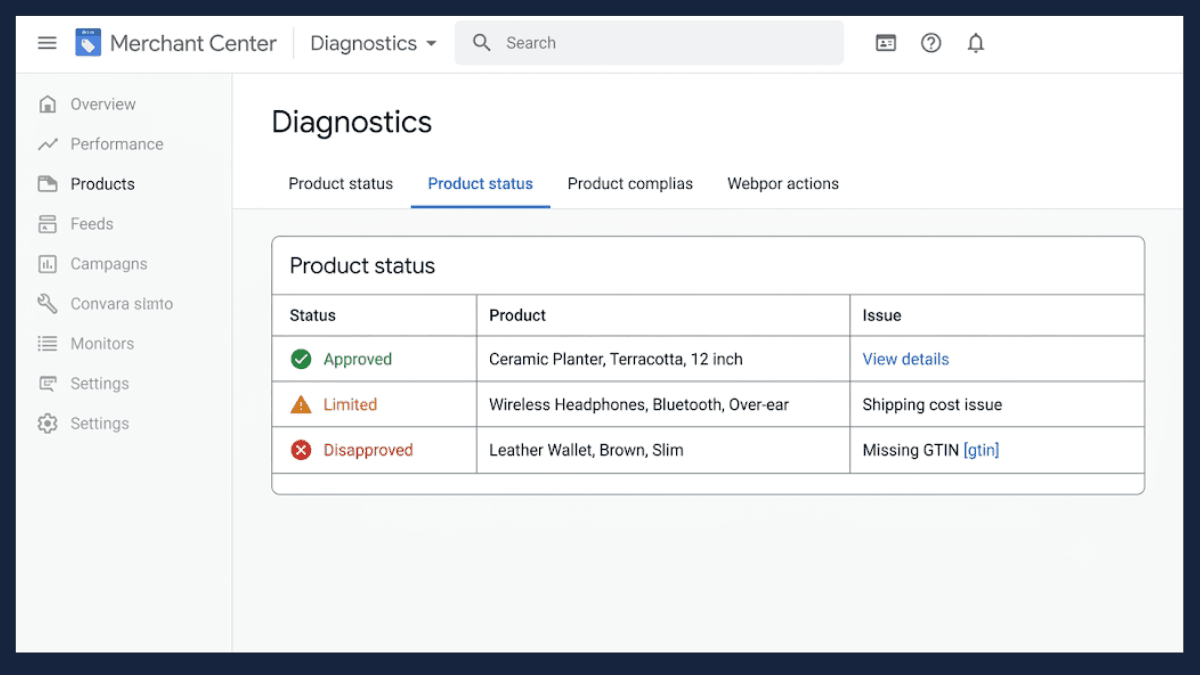
1. Clear Merchant Center disapprovals first. A disapproved product cannot show in Shopping or free listings, no matter how well the rest of your feed is built. Performance Max pulls from the same Merchant Center data, so a disapproved product is blocked from PMax placements too, not just Standard Shopping. Check the Diagnostics tab before touching anything else. Fixing feed fields on products that are disapproved for an unrelated reason (missing return policy, image issue) wastes the hour.
2. Rewrite your titles for search, not for your site. Product titles carry the most weight for matching. Google shows roughly the first 70 characters of a 150-character title in most placements, so front-load the attributes people actually search: product type, brand, key attribute, size or variant. A title copied straight from your product page ("Chrome Table Lamp, Nordic Collection") tells Google almost nothing about what the product is for. For the full field-by-field rewrite process, see the Google Shopping title optimization guide.
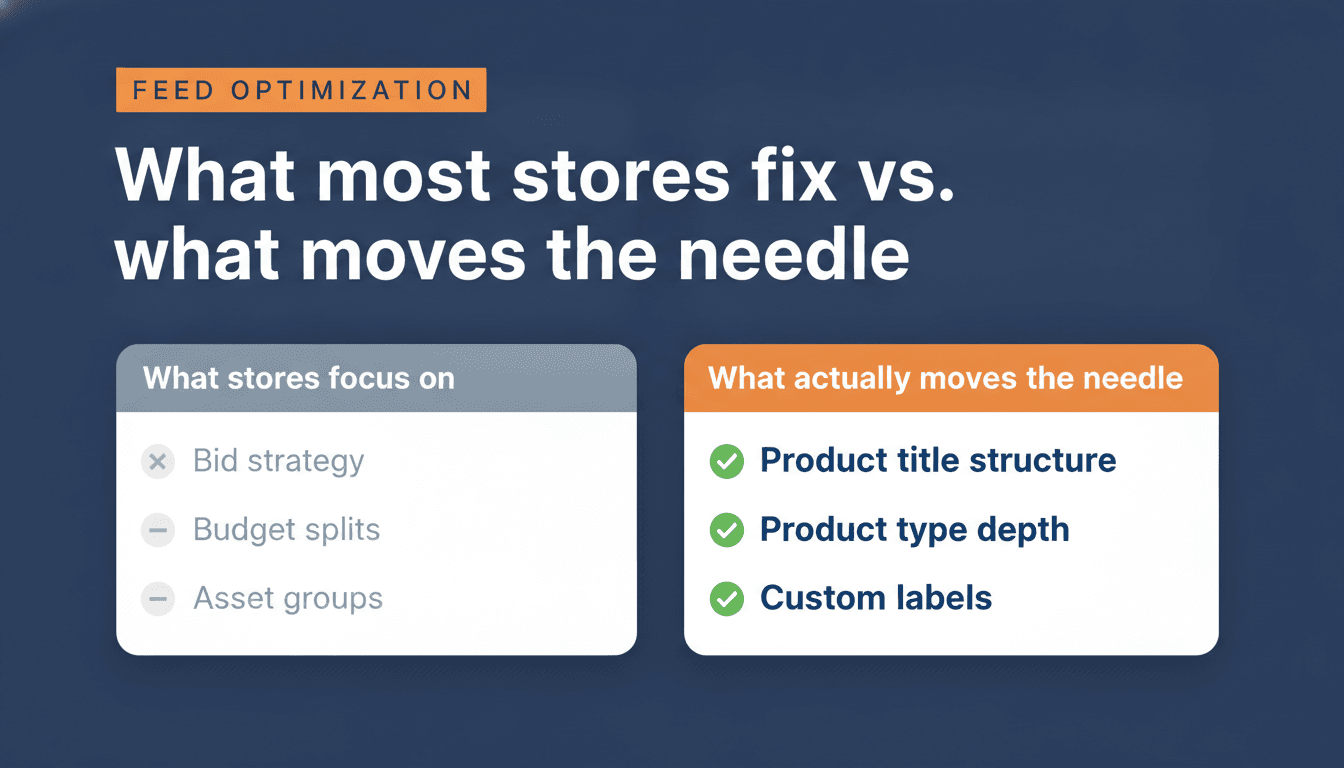
3. Push product_type deeper than one level. Most feeds set product_type to something like "Lighting" or "Home Decor." Practitioners consistently find that 4 to 5 levels of depth (Home > Lighting > Table Lamps > Modern > Living Room) gives PMax meaningfully better queries to match against, though Google doesn't publish an exact required depth.
4. Add GTINs where they exist, and say so where they don't. A missing GTIN on a product that has one limits how confidently Google can match it, including on branded and model-number searches (source). A blank GTIN on a product that should have one is treated as a missing required identifier, and can trigger warnings, limited visibility, or disapproval. If a product genuinely has no GTIN (custom-made, private label), set identifier_exists: false instead of leaving the field blank.
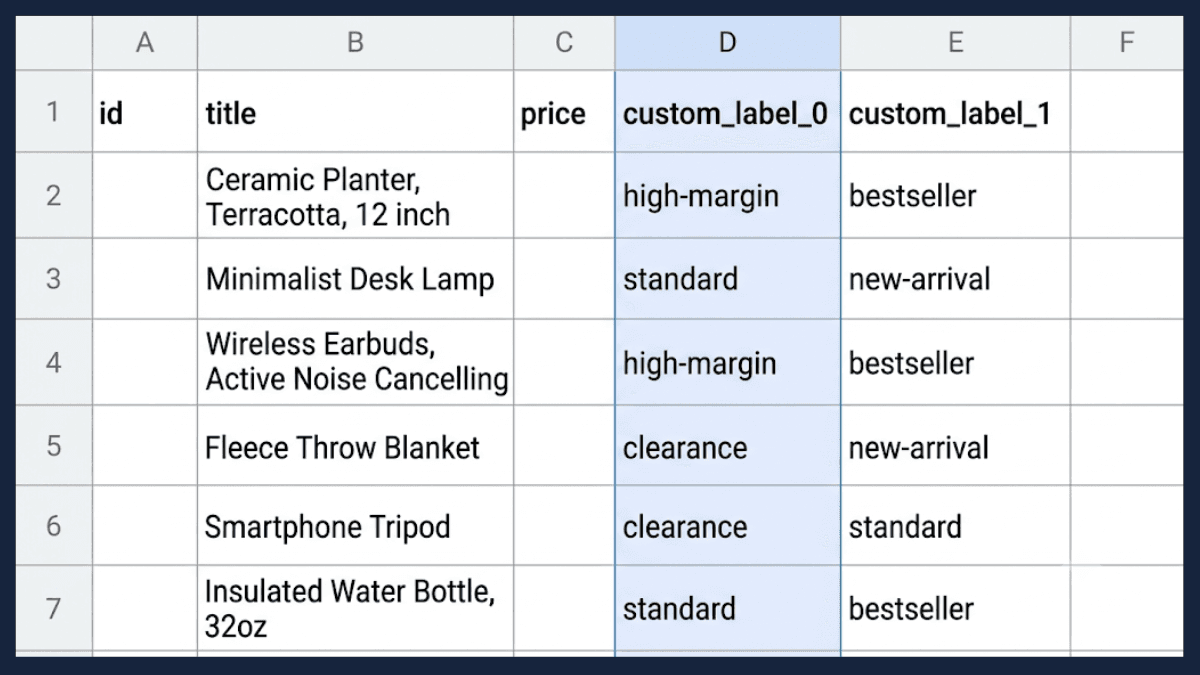
5. Set up custom labels before you need them. Custom labels are fields you define, Google doesn't read their values for matching, you use them to segment products into campaign structures later (margin tier, best-seller status, season). The campaign-structure section below depends on having these in place.
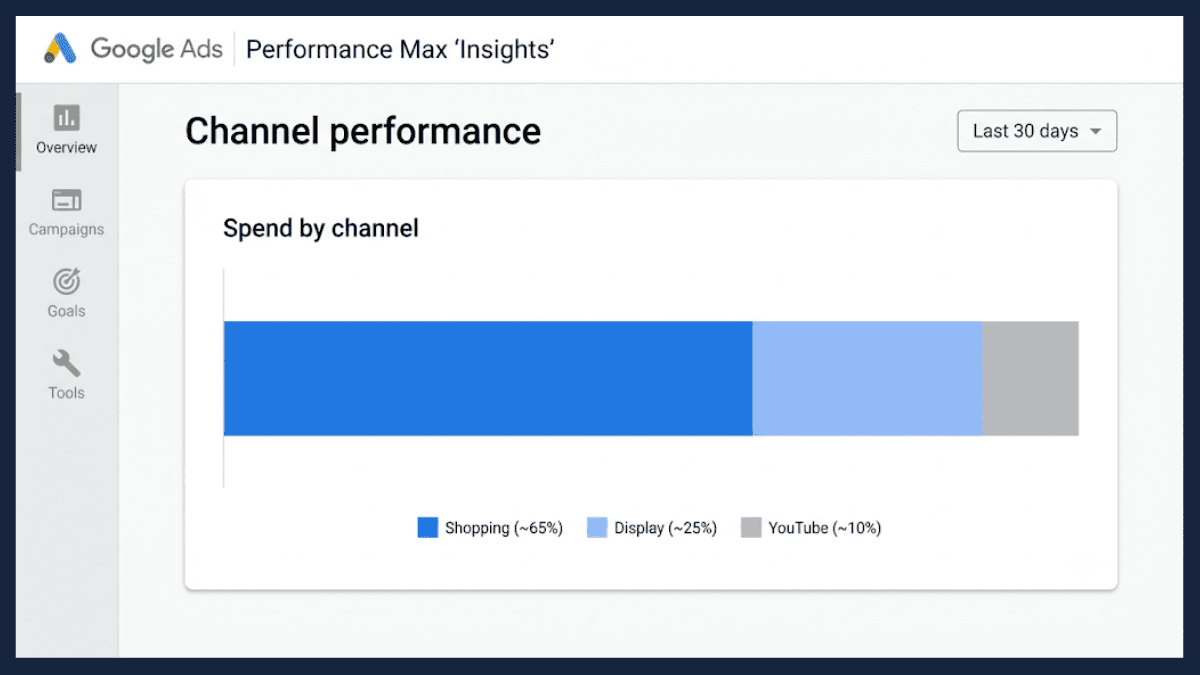
6. Check your channel split. Open the Channel Performance report (or the Insights tab) and look at how your budget splits across Shopping, Display, and YouTube. Practitioner benchmarks put a healthy ecommerce PMax split at roughly 60 to 80% Shopping. If your share sits well below that, treat it as a signal worth investigating, feed clarity, conversion goals, brand exclusions, not just a setting to fix in the campaign itself.
Illustrative example, not a real client: Picture a mid-size home goods store selling ceramics and planters. Its feed sends the on-site title straight through: "Ceramic Planter, Terracotta Collection." No GTIN field populated.
product_typeset to "Home Decor" for the entire catalog. In a campaign like this, the algorithm has almost nothing to match "large terracotta planter for outdoor herbs" against, so it leans on Display and YouTube to spend the budget instead. Rewrite the title to lead with product type and use case ("Large Terracotta Planter, Outdoor Herb Garden, 12 inch"), pushproduct_typetoHome > Garden > Planters > Terracotta > Outdoor, and add GTINs where the manufacturer provides them, and the same catalog gives PMax something to actually match against. This is a hypothetical built to illustrate the mechanism, not a documented result.
When Performance Max is (and isn't) the right choice
Passing the feed gate above is the first filter. Conversion volume and tracking quality are the second.
Use PMax when:
- Your feed passes the gate: disapprovals cleared, titles rewritten for search, product_type deep enough, GTINs present or explicitly marked absent.
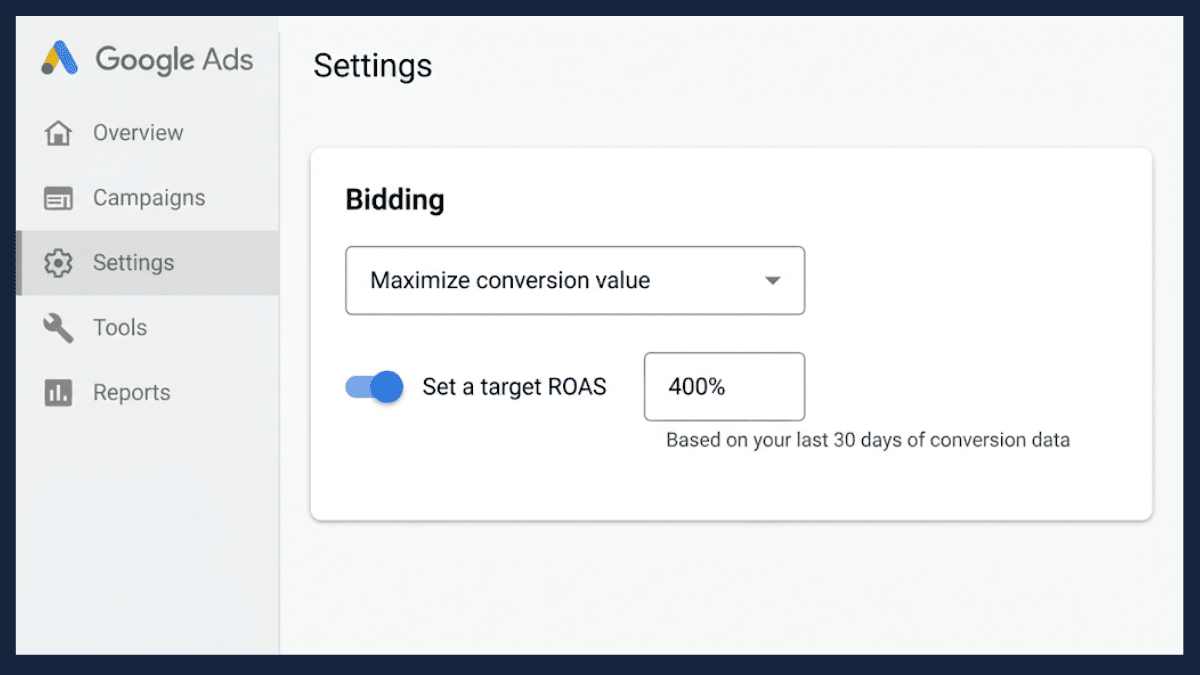
- Your account generates at least roughly 30 conversions a month, and ideally more. Google's Smart Bidding guidance recommends evaluating performance over periods with at least 30 conversions in general, and around 50 for Target ROAS specifically, so the bidding models have enough data to read (source). That's guidance for reliable evaluation, not a hard PMax requirement, but it's a useful floor to aim for.
- You want reach across Search, Shopping, Display, YouTube, and the rest without managing each channel as a separate campaign.
- You're comfortable with reduced query-level visibility. PMax shows you the Insights tab, not a full search terms report.
Don't use PMax when:
- Your feed hasn't passed the gate yet. Launching PMax on a thin feed doesn't fix the problem, it just automates the waste across more channels than Standard Shopping would.
- You're consistently well below conversion volume, practitioner benchmarks describe accounts under roughly 15 conversions a month as producing hit-or-miss PMax results, because Smart Bidding tends to sit in extended learning and never quite gets enough data to calibrate. PMax can technically run below this, it just becomes unreliable and hard to justify.
- Your total ad spend is very low. Practitioner benchmarks put a rough practical floor for PMax around $1,000 a month for typical ecommerce stores, though Google doesn't publish an official spend minimum, and high-AOV stores can sometimes make PMax work on lower budgets because each conversion carries more signal. Below that, Standard Shopping typically gives you more control for the same money.
- Your conversion tracking isn't solid. Smart Bidding optimizes for whatever it's told to optimize for. If tracking is broken, duplicated, or counting add-to-carts instead of purchases, fix that before PMax, not after.
- You need precise control over which queries trigger your products, brand-term protection or specific negative keyword management. Standard Shopping still wins on that kind of control.
If you've passed the feed gate and you're at or above these benchmarks, the algorithm has enough real signal to make the reduced visibility a fair trade. If not, spend the next few weeks on the feed and tracking, then come back to this.
If you're under the conversion floor, or still setting up your first Shopping campaign, start with the Ultimate Google Shopping Guide instead. It covers Standard Shopping setup in full, and the feed work applies to both campaign types, so nothing here goes to waste once you do move to PMax.
Performance Max vs Standard Shopping: the hybrid approach
This used to be a cleaner either-or question. Since October 2024, auction priority between the two campaign types is decided by Ad Rank, not by campaign type itself, Google confirmed that Performance Max no longer automatically outranks Standard Shopping for the same product in the same account. A well-optimized Standard Shopping campaign can outbid a PMax campaign on the same SKU. That changes what "hybrid" means: you're not forced to exclude products from Standard Shopping just because PMax exists, you're choosing where each campaign type earns its keep.
| Performance Max | Standard Shopping | |
|---|---|---|
| Placements | Search, Shopping, Display, YouTube, Discover, Gmail, Maps | Search and Shopping (plus Search Partners) |
| Bid control | Smart Bidding only (Maximize Conversion Value, optional Target ROAS) | Manual CPC, Maximize Clicks, or Target ROAS |
| Query visibility | Insights tab, limited | Full search terms report |
| New product ramp | Typically slower, little historical data to bid from | Typically faster, immediate visibility and manual control |
| Conversion volume | Best above roughly 30/month (50 for tROAS), per Smart Bidding evaluation guidance, not an official PMax minimum | No official minimum |
| Brand query control | Needs audience/brand exclusions set up deliberately | Exact match keywords protect brand terms directly |
| Auction priority | Since Oct 2024, decided by Ad Rank, not campaign type | Same |
Where the hybrid earns its complexity: new product launches with no conversion history, high-value queries where you want to see and control the actual search term, and brand-term protection where you'd rather not rely on audience exclusions alone. Run PMax on your proven catalog. Run Standard Shopping alongside it for those three cases, using product filters so the two campaigns don't compete for the same SKUs.
Not every store needs this. Practitioner guidance generally points to somewhere around $5,000 a month in ad spend as the point where running both becomes worth the added management, below that, one well-built PMax campaign, or one well-built Standard Shopping campaign, is usually enough.
Campaign structure: match segments to your real conversion volume
One of the most common PMax mistakes for ecommerce isn't a bad campaign built once, it's too many good campaigns built too soon. Splitting your catalog into five campaigns by product category feels like better organization. It usually means five campaigns each starving for data.
Practitioner benchmarks, based on campaign-level studies of PMax performance at different volumes, tie structure to conversion volume, not to how many categories you sell:
| Monthly conversions | Recommended structure |
|---|---|
| Under 30 | One campaign, full catalog. Put your energy into the feed, not segmentation. |
| 30 to 60 | One main campaign, optionally split out hero products if they alone clear 30+ conversions. |
| 60 to 150 | Two to three campaigns, segmented by margin tier or business objective. |
| 150+ | Full segmentation: acquisition vs retention, hero vs standard vs clearance, using the audience exclusions covered in what changed in 2025 and 2026, below. |
These are benchmarks, not fixed rules. High-AOV stores can often support segmentation at lower volume, because each conversion carries more signal for Smart Bidding to learn from.
When you do have the volume, segment by business objective, not by product category. A 60%-margin product and a 10%-margin product can't share a ROAS target and both stay profitable. Put them in one campaign and the algorithm defaults to whatever converts most easily, usually your best sellers, and starves everything else. The custom labels you set up in the feed gate (margin tier, best-seller status, season) are what make this split possible without touching your feed structure again.
Three segments that tend to work at scale:
- Hero products: proven converters, high margin, a separate campaign with an aggressive ROAS target.
- Standard catalog: the workhorse, one campaign, a moderate target.
- Clearance or low-margin: a separate campaign, different economics, you're moving stock, not protecting margin.
The bidding and structure principles here overlap with Standard Shopping, if you're running both, the guide to optimizing Google Shopping campaigns covers the Standard Shopping side of the same segmentation logic.
Asset groups: feed-only vs full creative
Asset groups are the working unit inside a PMax campaign, each one holds a slice of your product feed (via listing groups) plus whatever creative assets and audience signals you attach to it. For a campaign linked to Merchant Center, Google can generate the minimum assets automatically and run on the feed alone. This is what practitioners call "feed-only": no manually uploaded headlines, descriptions, images, or video. It comes from how Google's asset-group rules treat a Merchant Center-linked campaign, not a labeled "feed-only mode" you toggle on, so treat it as an established practitioner approach to working within those rules, not a formal setting.
Start feed-only. For most ecommerce accounts, running feed-only for the first several weeks keeps the algorithm focused on Shopping and Dynamic Remarketing placements, your highest-converting inventory for most stores, while it establishes a baseline. Add full creative assets from day one and you're giving Google permission to spend on Display and YouTube before you know what your Shopping numbers even look like.
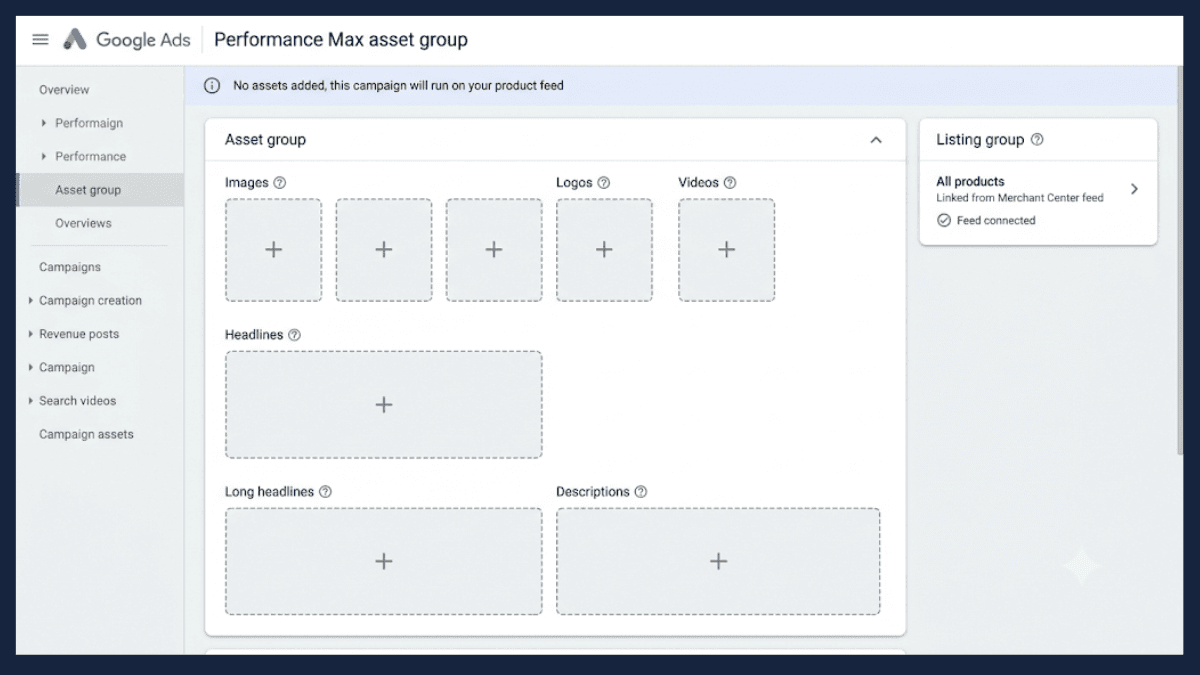
One mechanic worth knowing before you decide: once you add any manual asset to a feed-linked asset group, the exemption from minimum asset requirements is gone (source). You don't lose your feed, but you can't simply revert to a bare feed-only setup afterward, the group is held to the same minimums as one without a feed. Decide feed-only or full creative deliberately, not as a "we'll try it and see" toggle.
When you do move to full creative, organize asset groups by product theme, not by audience. Match the creative to what's actually in that group's feed segment, generic lifestyle imagery across every group wastes the creative slots. Aim for 3 to 7 asset groups per campaign, enough to segment meaningfully, few enough that each one earns real impressions.
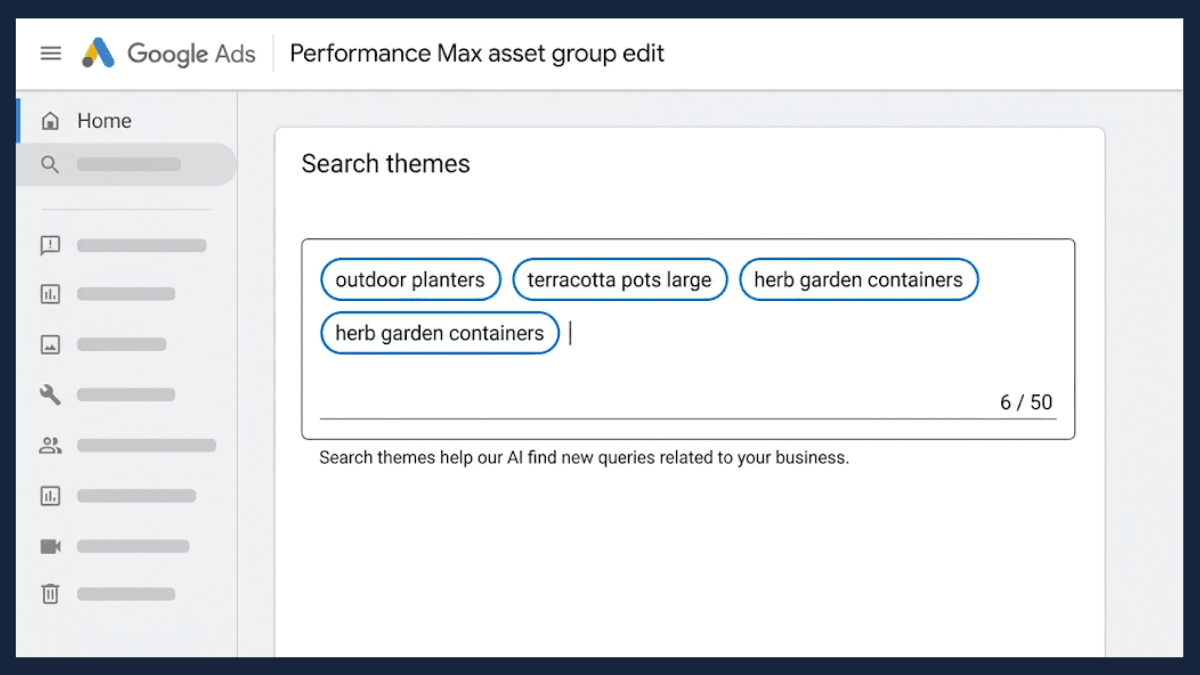
Use the search theme slots. Each asset group originally supported up to 25 search themes, Google expanded that to up to 50 in 2025 (source). Google describes search themes as carrying similar weight to phrase and broad match keywords in a Search campaign, a strong signal to the algorithm, not just a soft hint. For niche products or long-tail intent your titles don't explicitly cover, filling all 50 is one of the highest-leverage, and most commonly skipped, optimizations available.
Auto-generated video, built from your product images when you don't supply your own, is worth flagging here: it's the default, not an edge case, and it's rarely the quality you'd choose deliberately. What actually changed around this in 2025 and 2026 is covered next.
What actually changed in 2025 and 2026
Three changes matter more than most current guides treat them.
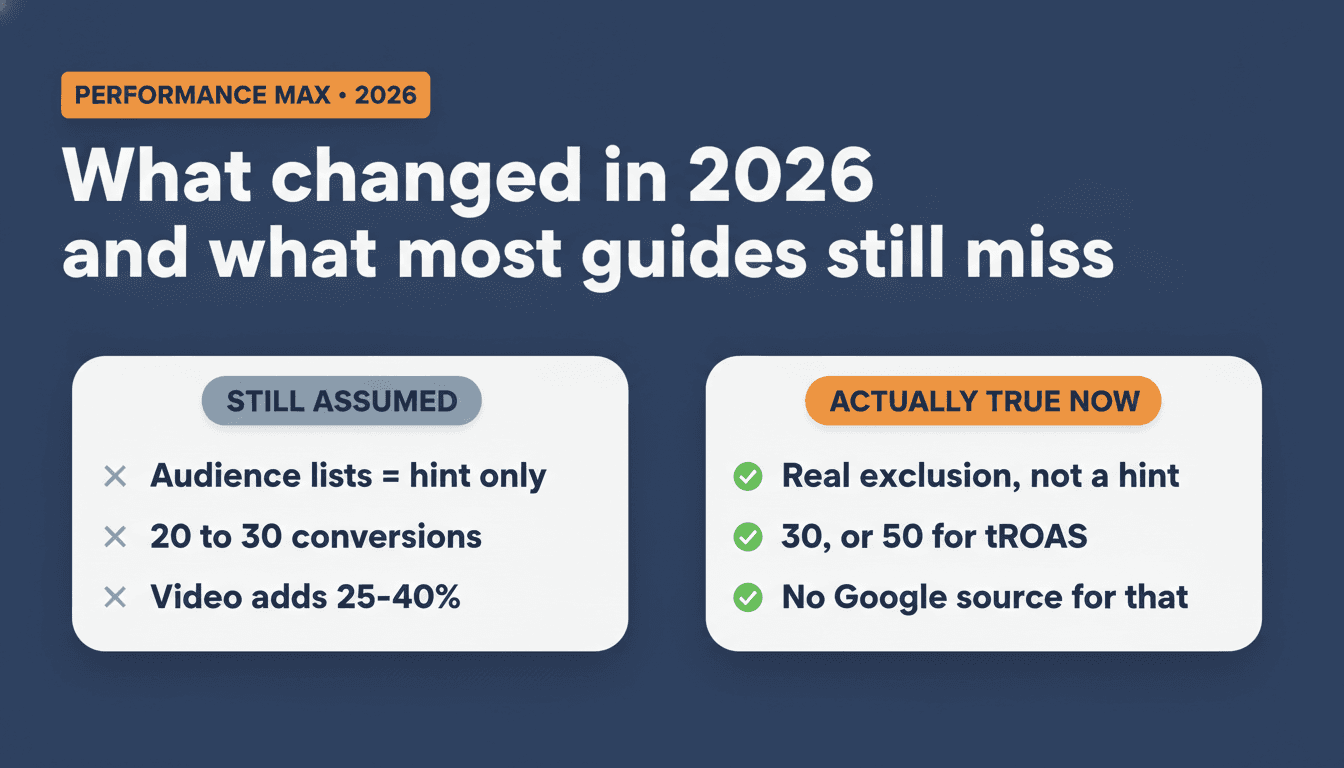
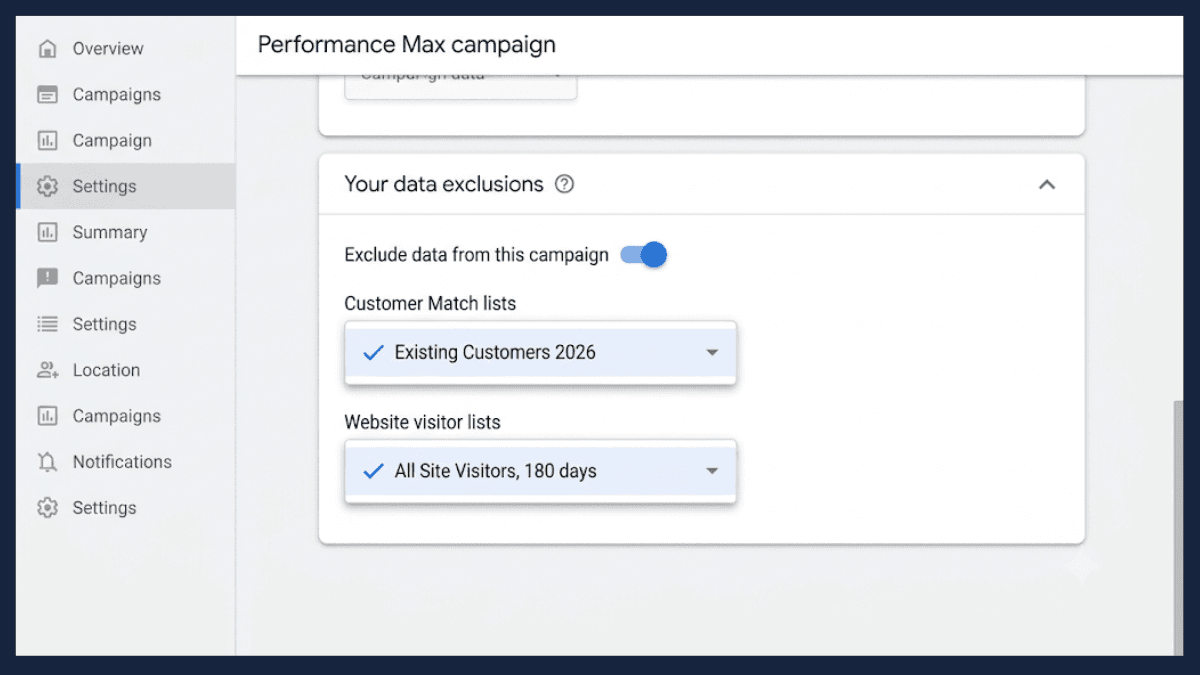
Audience exclusions became real exclusions. For years, adding a customer match or remarketing list to PMax only worked as a signal, a suggestion to the algorithm, not a hard rule. That changed with the data exclusions rollout in early 2026: you can now genuinely exclude a Customer Match list or Website Visitor list from a campaign, not just nudge the algorithm toward or away from it (source). Other audience signals you add still work as suggestions, this exclusion applies specifically to those two list types. The setting lives in campaign Settings, under data exclusions. Practically, this is what makes acquisition-only PMax campaigns possible: exclude your existing buyer list, and the campaign stops taking credit for people who were already going to buy from you. Audit the list before you turn this on, an outdated customer list can exclude people who should still be targeted just as easily as it protects your acquisition numbers.
Asset Studio can now generate real images and video, but the numbers around it need a caveat. Google added Nano Banana Pro to Asset Studio in November 2025, giving PMax and Demand Gen campaigns AI-generated imagery with better brand consistency and multi-product scenes than earlier versions (source). It's a real capability, not vaporware. What isn't as solid: the "25 to 40% better performance with video" figure that circulates across nearly every current PMax guide, attributed to "Google's testing." We couldn't find that number on any official Google Ads Help page. Treat it as an industry-repeated claim, not a confirmed Google statistic, video is still worth using, just don't repeat that percentage as if it's documented fact.
Power Pack is a name for three campaigns working together, not a new product. Announced at Google Marketing Live 2025, "Power Pack" bundles Performance Max, Demand Gen, and AI Max for Search as a recommended combination covering the full funnel (source). None of the three are new: PMax and Demand Gen already existed, AI Max for Search is Google's expanded version of Search campaigns. If a rep or an ad pitches "Power Pack" as something to purchase or turn on, what they're actually describing is running your existing campaign types in a coordinated way. Evaluate each one on its own merits for your account, not as a bundle you adopt wholesale.
Common mistakes, and what to check when results plateau
A short list. Most of these are variations on the same root cause: treating a symptom as if it were the disease.
- Launching on a feed that hasn't passed the gate. The single most expensive mistake on this list. Fix this first, every time, not after the campaign is already live.
- Over-segmenting for the conversion volume you actually have. Five campaigns with ten conversions each will underperform one campaign with fifty. Consolidate until the data supports the split.
- Adding full creative before establishing a Shopping baseline. ROAS looks like it dropped. Often, what actually happened is Display and YouTube spend got added into the average.
- Mixing high and low margin products in one campaign. One ROAS target can't serve both. The algorithm defaults to whichever converts easiest and starves the rest.
- Reacting to normal learning-phase noise. Every new campaign, and every campaign after a structural change, goes through a period where performance looks unstable. That's expected, not a signal to change something else.
- Skipping the audience exclusions covered above, in what changed in 2025 and 2026. Without them, PMax can take credit for existing customers, brand searches, and remarketing conversions that were happening anyway.
- Treating PMax as set-and-forget. It's automated, not self-managing. Channel allocation, asset performance, and search theme coverage all need a monthly look.
When results plateau, check in this order: if PMax ROAS has been flat for several weeks despite a clean feed and adequate conversion volume, first check channel allocation. If Display is well above the Shopping-heavy range from the feed gate above, the feed still isn't sending strong enough signals. Second, check audience exclusions. If you haven't excluded existing customers, PMax may be taking credit for conversions that would have happened anyway regardless of the campaign. Third, check your ROAS target against actual recent performance. A target set well above what the account has actually been delivering typically causes Smart Bidding to under-bid on new traffic rather than force better results.
Getting started: the right sequence
If you're setting up PMax for the first time, or rebuilding an underperforming one, work through this in order.
- Clear Merchant Center disapprovals. Nothing else matters if products can't show at all.
- Fix the feed. Titles, product_type depth, GTINs, custom labels, all in the same batch, not one field at a time. The feed-gate checklist above covers each one.
- Confirm your conversion tracking is accurate. Purchases, not add-to-carts or page views. Fix this now, not after you notice PMax optimizing for the wrong thing.
- Check you're at or above the conversion volume benchmarks above. If you're not, and your feed is otherwise clean, that's a reason to stay on Standard Shopping a bit longer, not a reason to launch PMax anyway.
- Launch one campaign, full catalog, feed-only. No creative assets yet. This is deliberate, not a placeholder step.
- Let it accumulate real conversion data before judging it. Resist the urge to change targets or structure a few days in because the numbers look flat, judge it against the conversion volume it needs to learn from, not a calendar date.
- Once you're consistently past the roughly-30-conversions-a-month benchmark (a Smart Bidding guideline, not a hard Google minimum), evaluate segmentation using the conversion-volume table above. If the volume doesn't support a split, stay consolidated.
- Add creative assets once Shopping performance is stable. Images first. Video if you can produce something better than the auto-generated default.
- Layer in audience exclusions once you're running alongside other campaigns. Customer Match and Website Visitor exclusions, so PMax isn't taking credit for people you'd have converted anyway.
- Add Standard Shopping in parallel if the hybrid case above applies to you: new arrivals, high-value queries, or brand-term protection. Use product filters so the two campaigns don't compete for the same SKUs.
The takeaway
Everything in this guide comes back to one thing: Performance Max is only as good as your product feed. Fix and structure your Merchant Center data first, because automation scales whatever you give it. Clean data scales profit. Broken data scales waste, faster and across more channels than Standard Shopping ever could.
If you take one action away from this: run the feed gate above before you touch anything else, even if your campaign is already live. Most of what looks like a Performance Max problem is a data problem wearing a campaign-settings costume.
If you want a second set of eyes on where your setup is actually breaking down, start with the free feed review. I look at your feed and Merchant Center and send you the 5 biggest fixes within 3 business days, with specific fixes, not a generic checklist.
Frequently asked questions
Are Performance Max campaigns worth it for ecommerce?
Yes, when your feed passes the gate covered earlier (clean titles, correct GTINs, adequate product_type depth, no disapprovals) and your account clears the conversion-volume benchmarks above. Below that, or on a thin feed, PMax tends to spend more of its budget on Display and YouTube instead of Shopping, because it can't match your products to search queries with confidence.
Why is my Performance Max campaign not spending?
Three common causes, in order to check: the campaign is still in a normal learning period after launch or a structural change, which looks unstable but isn't a problem on its own; products are disapproved in Merchant Center, which blocks them from PMax placements the same way it blocks Standard Shopping; or your ROAS target is set well above your account's actual recent performance, which makes Smart Bidding under-bid rather than spend aggressively. Check Merchant Center diagnostics and your recent ROAS before changing anything else.
Does Performance Max include Shopping?
Yes. Shopping is one of the placements PMax serves alongside Search, Display, YouTube, Discover, Gmail, and Maps, and for most ecommerce accounts it's where the majority of conversions actually happen. You can't restrict a PMax campaign to Shopping only, it's all placements or none, which is exactly why the feed gate matters: a weak feed pushes budget toward the other, lower-intent placements instead.
What is the difference between Performance Max and Shopping?
Standard Shopping runs on Search and Shopping only, supports manual CPC alongside Smart Bidding options, and gives you a full search terms report. Performance Max runs across all seven placement types using Smart Bidding only, with limited query visibility through the Insights tab. Since October 2024, Ad Rank decides which campaign serves when both target the same product, so a well-optimized Standard Shopping campaign can outrank PMax, it isn't an automatic PMax win anymore.
Is $1,000 a month enough budget for Performance Max?
It's close to the practical floor, not comfortably above it. Practitioner benchmarks put a realistic starting point for PMax at roughly $1,000 a month for a typical ecommerce store, though Google doesn't publish an official minimum, and high-AOV stores can sometimes make it work on less because each conversion carries more signal. Below that, Standard Shopping usually gives you more control for the same money.
How do I optimize my product feed for Performance Max?
Focus on four fields. Rewrite titles to front-load product type, brand, and key attributes in the first roughly 70 characters, since that's what most placements actually show. Push product_type to 4 to 5 levels of depth instead of one. Add GTINs where products have them, and set identifier_exists to false where they genuinely don't, rather than leaving the field blank. Set up custom labels (margin tier, best-seller status, season) so you can segment campaigns later without touching the feed again.
Why is a hybrid Performance Max and Standard Shopping strategy effective for ecommerce?
Because the two campaign types cover each other's blind spots. PMax handles your proven catalog well but ramps new products slowly and gives you little query-level control. Standard Shopping handles new launches, high-value queries, and brand-term protection, the exact cases PMax struggles with. Since Ad Rank now decides the auction rather than campaign type, you can run both without one automatically starving the other, provided you use product filters so they don't compete for the same SKUs.
About the author

Auke Jongbloed
Auke Jongbloed is a Google Shopping and product feed specialist. He builds a product feed manager for WooCommerce, and works directly with ecommerce store owners on Google Shopping and Performance Max setups via aukemarketing.com. Follow him on LinkedIn for more on Google Shopping and feed strategy.
Free feed review
Get the 5 biggest fixes for your Shopping feed
Send me your store and I look at your product feed and Merchant Center. Within 3 business days you get the 5 biggest fixes, in plain language. Free, 5 reviews per month, no commitment.
Get your free feed review