Google Shopping Title Optimization: What Still Works When Google Rewrites Your Titles Anyway
A study that circulated on Reddit showed that more than 90% of Google Shopping titles are actively rewritten by Google. If that is true, it is fair to ask: why spend time on title optimization at all?
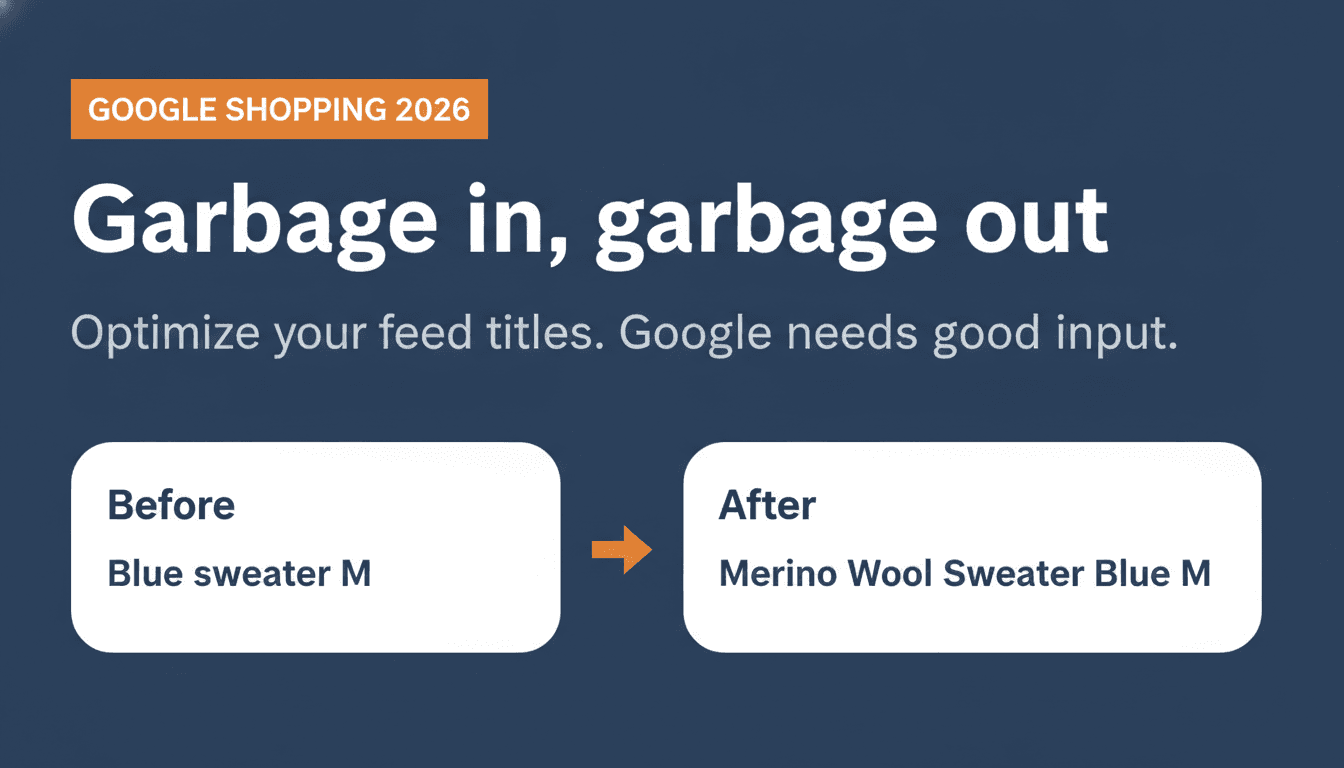
The short answer: garbage in, garbage out. Google rewrites your title, but builds that new version from the data you supply. If your product name is "Blue sweater size M," the algorithm has little to work with. If your product name is "Men's wool sweater cobalt blue 100% merino size M," the algorithm starts from a very different position.
You do not dictate what ends up in the Shopping ad. But you do determine the quality of the material the algorithm works with. The title is one link in a larger chain, covered end to end in the ultimate Google Shopping guide; this article goes deep on the link that matters most.
Key insights
- Google rewrites Shopping titles by default through Product Data Customization, but always works from your original feed data.
- The source of your title sits in your store, not in your feed tool. A generic product name is the real problem.
- The first thing you can do right now costs no external tool: use Feed Rules in Google Merchant Center to give your top ten products a better title.
What Google actually does with your title
Google has a feature called Product Data Customization. It is switched on by default for everyone. What it does: Google takes your product data, title, description, images, landing page, and builds an ad title that in its judgment best matches a customer's search query.
You can opt out. According to Google's official documentation, you request the opt-out through your account manager or Google Ads support. If you are on Merchant Center Next, check Settings for a direct toggle. The interface has been updated and the exact path depends on which version you are using.
But is that what you want? For most e-commerce owners, no. The feature exists to compensate for what your feed is missing. If your feed is solid, Google has less to compensate for and your original title stays intact more often.
On title length: Google's best practices say to use all 150 characters, because your title is used to match products to search queries. At the same time, Google's own help documentation notes that only the first 70 characters are shown in most Shopping placements, and recommends submitting titles of 70 or fewer characters when possible. The practical advice: front-load the first 70 characters with your most important information (brand, product type, primary attribute), then use the remaining space for additional attributes that help with matching. Do not pad titles to hit 150 if the extra words add nothing specific, and note that anything past the 150-character maximum gets truncated and flagged.
The chain nobody explains: from your store to Shopping ad
This is the blind spot in most articles about Shopping title optimization. They treat the title as if it originates somewhere in the middle of your funnel, inside a feed tool or inside Merchant Center. But the chain starts much earlier.
This is the path a product title travels:
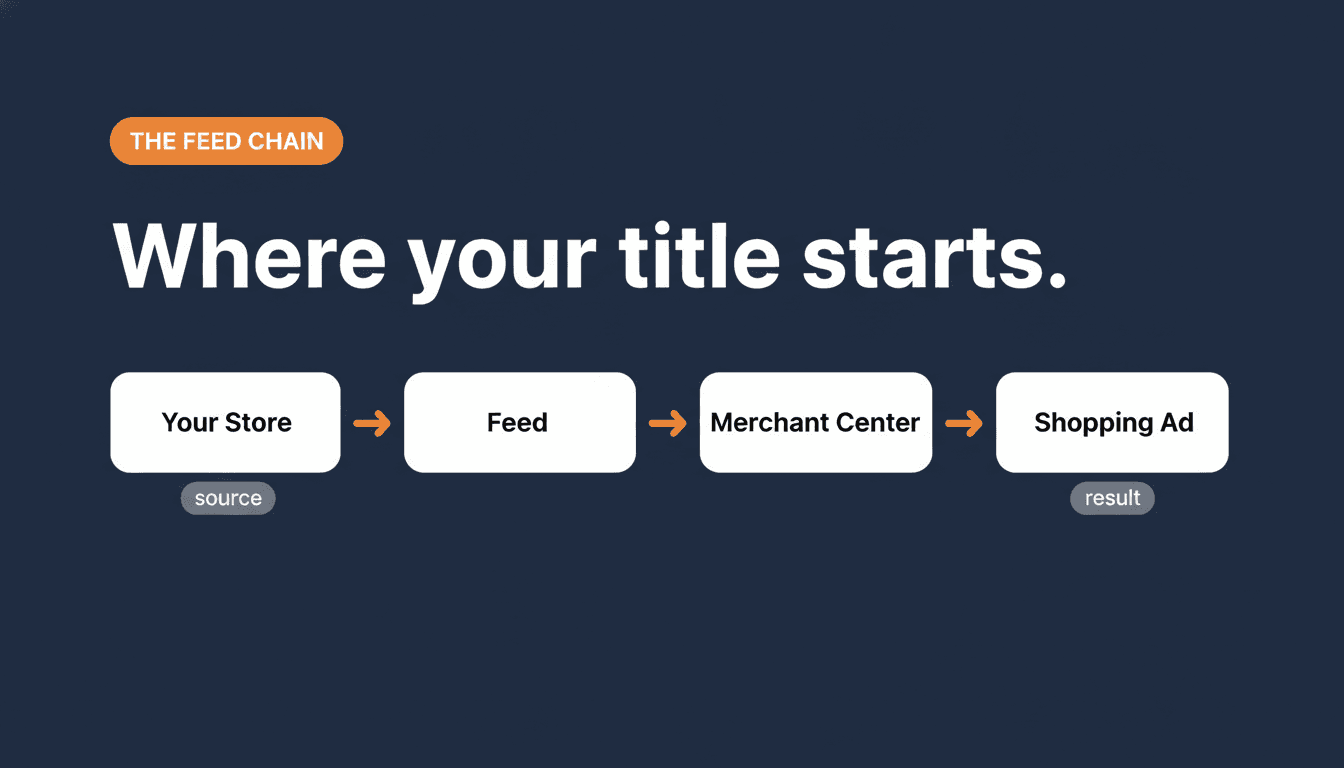
Store product name → feed (via plugin or export) → Google Merchant Center → algorithm → Shopping ad title
Data can be lost or distorted at every step. But the step that gets overlooked most often: the beginning. The product name you enter in your store's catalog.
Say you run a store selling running shoes. The product is called "Nike Air Max 90." That is a clear name for a human, but for the Shopping algorithm a lot is missing: gender, size, color, material, intended use. Google has to pull that missing information from somewhere, and if you do not provide it, Google takes it from your landing page or description. That produces inconsistent results.
Compare that to a store that lists the same product as "Nike Air Max 90 Men's Running Shoe White/Grey Size EU 42-47 Air Cushion Sole." That store gives the algorithm a much richer signal.
The difference is not in the feed tool. It is in how products are created in the first place.
The four most common mistakes
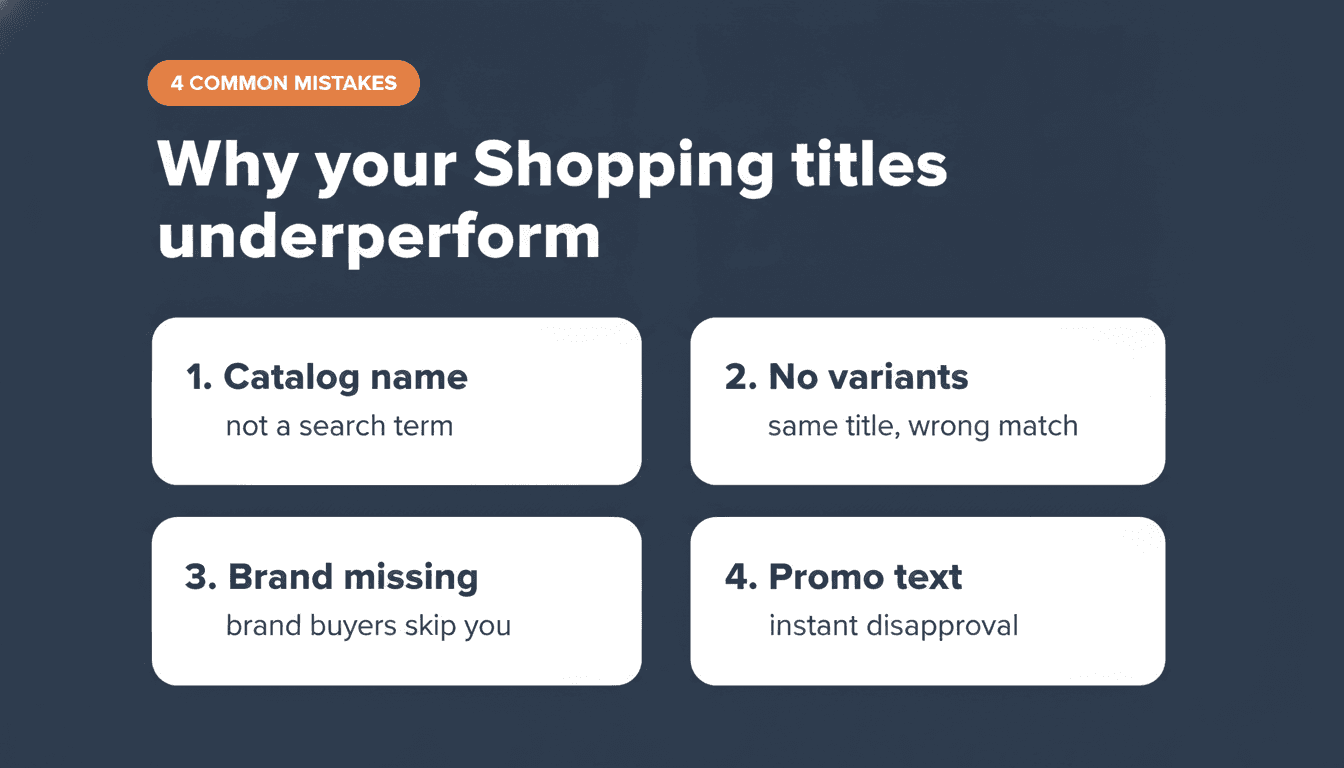
1. The product name is too generic The product name is correct, but it stops at what the product is called, not what a buyer would search for. "Men's running shoe" or "Blue dress" are accurate, but they give the algorithm nothing to work with in terms of brand, fit, material, or intended use. Most stores do not name products randomly; they just name them for their own catalog logic, not for search intent.
2. Variants are not distinguished in the title Google requires that you distinguish variants in the title. A red dress in size S and a blue dress in size M are two separate products in the Shopping algorithm. If both carry the same title, you compete with yourself and Google serves the wrong variant to the wrong searcher.
3. The brand is at the end or missing entirely For branded products, the brand is a primary search criterion. Buyers search for "Nike Air Max 90," not "Air Max 90 Nike." Put the brand first when it is a differentiating factor for your audience.
4. Promotional text in the title "Now on sale" or "Free shipping on orders over €50" in a title leads to disapproval. Google does not allow promotional text in the title field. That belongs in Merchant Promotions, a separate attribute for discounts and offers.
What you can do right now: Feed Rules in Merchant Center
You do not need an external feed tool to improve your titles. Google Merchant Center has a built-in feature: Feed Rules (also available as Supplemental Feeds via Google Sheets).
Here is how to fix your ten best products:
- Go to Products > Feeds in Google Merchant Center (in Merchant Center Next the path may differ slightly depending on your account setup).
- Select your primary feed and click Feed rules.
- Add a rule for the
titlefield. - Apply conditional logic: if the product is from category X, combine field Y with field Z.
A simple rule for a fashion retailer: [brand] + " " + [product_type] + " " + [color] + " " + [size]
Result: "Nike Running Trousers Black M" instead of "Black trousers."
This takes an afternoon. For your ten best-selling products it produces measurable results in impressions and clicks almost immediately, because the algorithm now has richer signals to work with.
Titles are not the only feed attribute Google has been expanding lately. If you want to see what else is worth adding, including a new attribute that lets you tell Google which products are your actual best sellers, see popularity_rank and how to calculate it automatically in WooCommerce.
One thing worth knowing: the same title principles apply directly to Performance Max. PMax uses your product titles to determine which searches your Shopping placements compete for, and unlike Standard Shopping there are no negative keywords to compensate for a bad title match. If you are running PMax or planning to, the Performance Max guide for ecommerce covers title structure and the other three feed fields that move the needle most.
If you want to do this at scale for hundreds or thousands of products, automation is the next step. A Shopping Feed Auditor skill can comb your entire catalog for title issues in minutes. Claude Skills for Google Ads explains how to set that up. But start small, with your top ten, and measure the difference first.
Feed manager tools: title optimization without touching your store
Feed Rules in Merchant Center work, but they have limits. If you need more control: conditional logic based on category, price range, or stock status, or title templates across hundreds of product types, a dedicated feed manager tool gives you more flexibility.
WP Marketing Robot lets you build title templates at the feed level: combine fields like brand, product type, color, and size into a structured title without changing anything in your store. Tools like Channable and DataFeedWatch work the same way.
The principle is identical to Feed Rules: you define a template, the tool applies it to every product in the feed. The difference is that a dedicated feed tool usually gives you more conditions, more field combinations, and a cleaner interface for managing rules across large catalogs.
If you are running a few hundred products or fewer, Merchant Center Feed Rules are enough. Beyond that, a feed manager tool pays for itself in the time it saves.
Running Shopping campaigns and not sure whether your feed is what is holding you back? That is exactly the kind of thing a feed audit surfaces. Get in touch if you want a second pair of eyes on your setup.
Frequently asked questions
Does it still make sense to optimize titles if Google rewrites them anyway? Yes. Google builds the new title from your original data. The richer and more accurate your feed information, the better the material the algorithm has to work with. Garbage in, garbage out applies here: a weak product name as a starting point produces a weaker Shopping title, even after rewriting.
How long can a Google Shopping title be? Up to 150 characters. Google's best practices recommend using all 150 for matching purposes, but only the first 70 characters are shown in most Shopping placements. Front-load those first 70 with your most important information: brand, product type, primary attribute. Use the remaining characters for additional attributes that help with query matching, but do not pad titles just to hit the maximum.
What is a good title structure for Google Shopping? The most effective structure puts brand first (if it is a differentiating factor), followed by product type, then the most relevant attributes: color, size, material, gender, or intended use. For example: Brand + Product Type + Color + Size. The exact order depends on your category. For fashion, color and size matter early. For electronics, model number or spec matters more.
How do I optimize my title if my brand has no recognition? Put product type and the most specific attributes first instead of brand. A buyer searching for a blue wool sweater in size M does not know your brand, but they do know exactly what they want. Lead with what they are searching for: product type, key attribute, then material and size. The brand can follow.
Can I put "Free shipping" in my Shopping title? No. Google does not allow promotional text in the title field. Products with promotional text in the title are disapproved. Use Google Merchant Promotions for discounts and offers.
When should I use Feed Rules versus a feed manager tool? Feed Rules in Merchant Center are free and work well for a catalog up to a few hundred products. A dedicated feed manager tool like WP Marketing Robot, Channable, or DataFeedWatch gives you more flexibility: conditional logic, more field combinations, and easier management at scale. If you are spending more than an afternoon maintaining your Feed Rules, a feed tool is likely worth the investment.
What does Product Data Customization actually do? Product Data Customization is a Google feature switched on by default. Google uses your product data, landing page, and images to generate ad titles that match the search query. To opt out, contact your Google Ads account manager or support team. If you use Merchant Center Next, check Settings for a direct toggle. For most stores, opting out is not necessary. Make sure your feed data is solid and Google compensates less, which means the final title stays closer to what you submitted.
About the author

Auke Jongbloed
Auke Jongbloed is a Google Shopping and product feed specialist. He builds a product feed manager for WooCommerce, and works directly with ecommerce store owners on Google Shopping and Performance Max setups via aukemarketing.com. Follow him on LinkedIn for more on Google Shopping and feed strategy.