Google Merchant Center Suspended: What to Do in 48 Hours
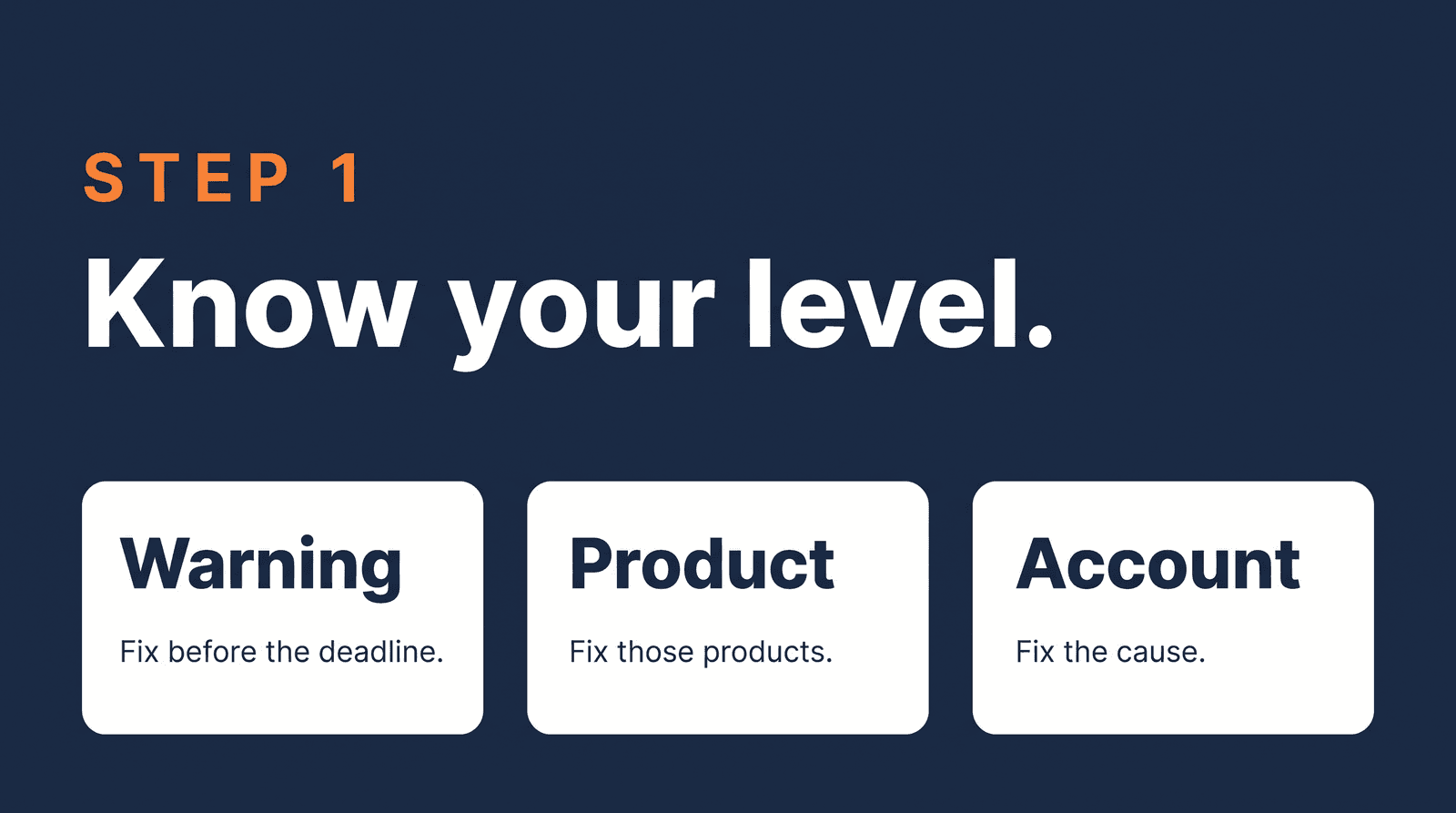
Your Shopping ads stopped, or Merchant Center is showing a notice. Before you fix anything, work out what you are looking at. A warning, a disapproval on a few products and a suspension of the whole account are three different situations, and each one calls for a different next step.
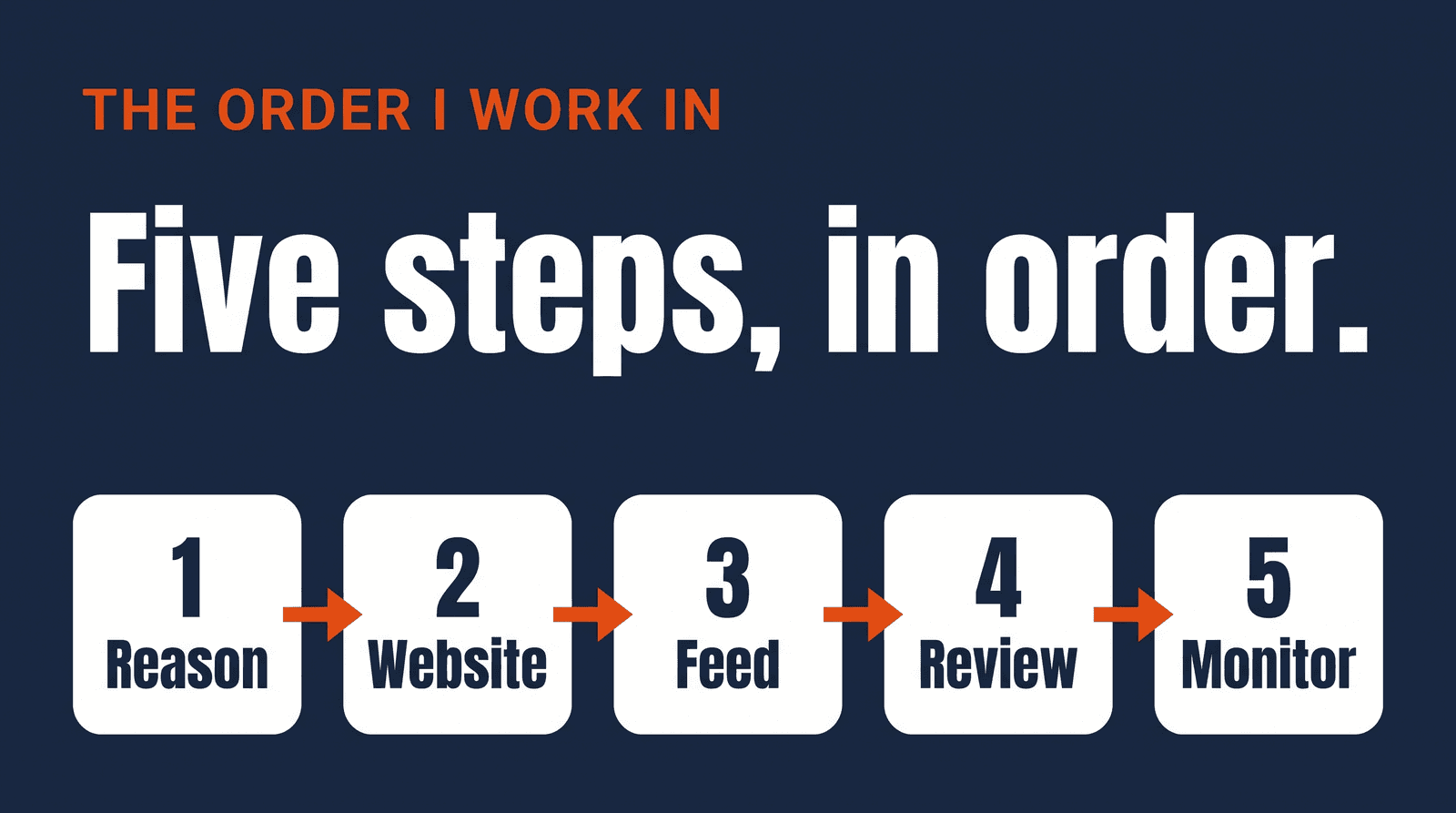
I start every case the same way. First I find out which of the three it is and which policy Google names. Only then do I touch the website, the feed or the review button. The rest of this guide is the order I work in: find the exact reason, check the website and policies, clean up the feed and product data, request a review, and then keep an eye on things.
Key insights
- Before you fix anything, find out whether you have a warning, a product disapproval or an account suspension, and which policy Google names. Everything after that depends on it.
- The 48 hours are my frame for the acute phase, not a Google deadline. Google does not set one. In practice the first two days go to step 1 and the start of step 2.
- Not every suspension comes with a warning. For the most serious violations Google says it suspends upon detection and without prior warning.
- A review request is a gate, not a first reaction. Google says a cool down may follow an unsuccessful second attempt, and that you may only have one chance to disagree with an issue.
- Do not delete the account and open a new one. Google says the new account is likely to be suspended as well.
- Nobody can promise reinstatement. Google decides.
Step 1: Work out what you are dealing with
Sign in to Merchant Center, open the "Needs attention" area and read Google's official emails. You are looking for one thing: the exact policy Google names. Everything that follows depends on it.
Google says account-level issues show in a banner at the top of your Merchant Center account, on the Home page, in the summary cards on the "Needs attention" page and in the Diagnostics tab. Product-level issues are on the "Needs attention" tab of the Products page (Google Help and Google Help). The first of these pages is Google's guide to warnings and suspensions. It is written for users of the Google & YouTube app on Shopify but has a section for Merchant Center accounts, and I cite it where it matches the general review page. Menus change over time, so if yours look different, search for the issue name.
Here is how the three situations differ.
| Warning | Product disapproval | Account suspension | |
|---|---|---|---|
| What it affects | Your products, possibly in a limited visibility state | Individual products | The whole account |
| Where you see it | A warning email and the "Needs attention" tab | The "Needs attention" tab of the Products page | A banner, the Home page, "Needs attention", Diagnostics and a series of emails |
| What to do | Fix the issue before the warning period ends | Fix the product data or the page. Google says edited products are re-reviewed automatically, or you can request a review or appeal (Google Help) | Work through steps 2 to 5 |
How a warning becomes a suspension
Google says that for most violations it sends a warning email with the policy violation, how to fix it and a timeframe, and gives you 7 or 28 calendar days to fix the issue. It also says it may not issue a warning for egregious violations (Google Help and Google Help). During a warning period you can request one courtesy review (Google Help). If the violating products are removed in that period, the account is reviewed automatically at the end of it, so no review request is needed (Google Help).
Not every violation gets a warning. Within its misrepresentation policy, Google says a warning will be issued at least 7 days before any suspension for unavailable offers, manipulated media and unreliable claims. For unacceptable business practices, coordinated deceptive practices and dishonest pricing and transaction conditions, which Google treats as egregious, it says accounts are suspended "upon detection and without prior warning", and that you will not be allowed to list content with Google again. It adds that if you believe there has been an error, you can submit an appeal and explain why (Google Help). So a suspension without a warning email does not automatically mean you missed one, and for these violations the steps in this guide may not lead back to a working account.
In my experience, a price that differs from the landing page, or a landing page that does not load, is usually flagged on individual products first, so start with the product list. Google says repeated or severe rule violations may lead to an account suspension (Google Help).
Write down what you find
This part is my own advice, not Google's. Note the exact policy name, the date and any deadline, and take a screenshot. You will need it for the review request, and later it shows what changed.
If the policy is misrepresentation, the full misrepresentation guide goes deeper than this article. For a short lookup of the notice itself, use the Error Decoder page on account suspensions.
Step 2: Check your website and policies
Once you know the policy, look at the site the way a first-time visitor and Google's crawler would see it. In my experience the cause is usually an unfinished or inconsistent store, not something dramatic. This is what I find:
- A site that is incomplete or technically off. Missing pages and broken links.
- A blocked crawler. I once found Googlebot blocked in robots.txt. The owner had no idea.
- Contact details that are missing or inconsistent. Sometimes only part of the information is there. More often the address on the website differs from the address on the Google Business Profile and on social media.
Google's pre-review checklist is more specific. It says contact information, shipping policies and return and refund details should be "clear, consistent, and easily accessible" in your footer, and that your business name, address and contact details should be standardized across your website, Merchant Center settings and payment profiles (Google Help). Comparing your Google Business Profile and social media is my own extra check. Google does not list it.
For the crawler, Google's landing page guidance says to make sure "AdsBot-Google" is not blocked in your robots.txt and that Googlebot and Googlebot-image are allowed (Google Help). That page is about landing pages that do not work, not about misrepresentation, but it is a two-minute check, so I do it first. If your contact details are incomplete, the decoder page on missing contact information shows what to add.
Fix what you find, and write each change down.
Step 3: Clean up your feed and product data
The way I think about it: the website is what a reviewer looks at, and the feed is what Google's systems read every day. When they disagree, you have the kind of inconsistency that puts an account at risk, so compare them. Google's checklist says pricing and availability in your feed should exactly match your landing pages (Google Help). My check is simple and tedious: open ten products from the feed and ten product pages and compare price, availability, product name and main image side by side. Pick different categories and include a few that were on sale recently, because sale prices are where feeds and pages drift apart most often.
Two other things I look at, both from my own experience and not from Google:
- A feed that stopped updating. If the feed has not refreshed for days, its prices can be out of date even when your store is fine. If your connection relied on the legacy Content API, my article on the Content API shutdown shows how to check that in a few minutes.
- Product text and photos copied from the supplier. Usually not a problem on its own, but a signal next to other issues such as thin business information or inconsistent details. I improve it after the acute problems are fixed.
If you would rather have someone compare the three sources for you (your feed, your Merchant Center settings and your store pages), that is the diagnosis in my Shopping Fix. Whether Google reinstates an account is Google's decision, and nobody can promise that outcome.
What to leave alone while you fix
Some moves feel productive and make things worse. The first two come from Google's own pages, the last is my own advice.
Do not delete the suspended account and open a new one. Google says that deleting a suspended account will not resolve the suspension, that a new account for the same business is likely to be suspended as well, and that it is not recommended (Google Help).
Do not request a review before the cause is fixed. Google says a one-week cool down may begin if your issues are not resolved by the second review attempt, and that you may only have one chance to disagree with an issue (Google Help). A review sent too early uses up an attempt on a problem that is still there.
And keep a change log. A short list with the date, what you changed and where makes the review request easier to write, and shows you what you already tried if the account is flagged again.
Step 4: Request a review
A review request is a gate, not a first reaction. I only go through it when the cause is fixed, the fixes are written down, the feed has been updated and any identity verification Merchant Center asks for is done. On the feed, Google says to manually update your product data or wait for your automated upload schedule to run before requesting any reviews (Google Help). Google says that if you are prompted in the "Needs attention" tab, you must upload clear, government-issued IDs or business registration documents, which is often required before you can request a review of an account-level suspension (Google Help).
Then you wait. Google says a review may take up to 7 business days, and its guidance after you submit is to wait 7 business days (Google Help). The guide for Shopify app users says review requests typically take up to 3 to 7 business days (Google Help). Google also says your ads may not show while your account or products are under review. Do not submit a second request while the first is open.
If the review is unsuccessful, the timing changes. Google says a one-week cool down may begin if your issues are not resolved by the second review attempt (Google Help), that the cool down may increase with each unsuccessful review afterwards and that the review button is disabled during it (Google Help), and that Google support cannot bypass or shorten it (Google Help). Google's landing page guidance adds that, depending on the violation, there might be extra verification steps and a limit on how many reviews you can request. It does not say how many (Google Help).
My own rule of thumb is not Google policy and not a quota: in my experience, after about three unsuccessful review attempts the chance of a permanent ban rises sharply. Google may handle your case differently. I use it as a reason to slow down. If the first attempt fails, I do not send a second one until I understand what the first one missed.
For the most serious violations, Google says on its misrepresentation page that accounts are only reinstated in compelling circumstances, so it is important to be thorough, accurate and honest (Google Help). That is one reason I never promise a result.
Step 5: Aftercare and monitoring
If your account is reinstated, the job is not finished. What put you in trouble can drift back, such as a price that changes in the store but not in the feed, or a footer that loses a link in a redesign.
Here is a monthly check you can do yourself in about half an hour. This is general advice, not a Google requirement:
- Compare ten products between the feed and the product pages, as in step 3.
- Check that the footer still shows your contact details, shipping policy and return policy, and that they still match.
- Look at "Needs attention" in Merchant Center for new warnings, and read any email from Google the same day.
If you want to go further, this is what I mean by good ongoing monitoring. It has six parts:
- Health checks. Account status, diagnostics and the share of approved products.
- Policy and compliance. The store and the account against the policies Google applies.
- Feed quality. One view of where the feed is incomplete or inconsistent.
- Incident handling. A clear owner, cause and fix when something is flagged.
- Structural improvements. Fixing how prices and stock reach the feed, so the same issues are less likely to return.
- Reporting. A short report and a regular check-in.
This is my view, not Google's: checks like these reduce the chance of a repeat, and they do not prevent a suspension. Google decides. If you do not have the time to do this yourself, it is work you can hand to someone else.
Frequently asked questions
What should I do first when my Google Merchant Center account is suspended?
Find out exactly what you are dealing with before you change anything. Sign in, open the "Needs attention" area and read Google's emails to see whether it is a warning, a product disapproval or an account suspension, and which policy Google names. Write down the policy, the date and any deadline. Do not delete the account and do not request a review yet.
Why was my account suspended without a warning?
Not every violation gets one. Within its misrepresentation policy, Google says that unacceptable business practices, coordinated deceptive practices and dishonest pricing and transaction conditions lead to suspension upon detection and without prior warning, and that you will not be allowed to list content with Google again. For unavailable offers, manipulated media and unreliable claims, Google says a warning is issued at least 7 days before any suspension.
How do I fix a misrepresentation suspension in Google Merchant Center?
Fix the cause before you ask for a review. Check that your contact details, shipping policy and return policy are clear and consistent, that Googlebot can reach your site, and that prices and availability in your feed exactly match your product pages. My full walkthrough is in the guide on fixing misrepresentation.
Should I delete my suspended account and start a new one?
No. Google says deleting a suspended account will not resolve the suspension, and that a new account for the same business is likely to be suspended as well. It also says it is not recommended. Fix the issue in the existing account instead.
How long does a Merchant Center review take?
Google says a review may take up to 7 business days, and its guidance after you submit is to wait 7 business days. A guide for Shopify app users says typically 3 to 7 business days. Your ads may not show while the account is under review, so plan for up to a week and a half on the calendar and do not send a second request while the first is open.
How many times can I request a Merchant Center review?
Google does not give a number. Its landing page guidance says that, depending on the violation, there might be a limit on how many reviews you can request, and a one-week cool down may begin if your issues are not resolved by the second attempt. My own rule of thumb is about three unsuccessful attempts before a permanent ban. That comes from experience, it is not Google policy and it is not a quota.
What to do today
Write down the exact policy name Merchant Center shows, the date, and any deadline. Then decide which of the three levels you are on: warning, product disapproval or account suspension. That takes ten minutes, and it tells you which of the five steps to start with.
If you would like a second pair of eyes on it, send me your store and I will look at your product feed and Merchant Center for free.
About the author

Auke Jongbloed
Auke Jongbloed is a Google Shopping and product feed specialist. He builds a product feed manager for WooCommerce, and works directly with ecommerce store owners on Google Shopping and Performance Max setups via aukemarketing.com. Follow him on LinkedIn for more on Google Shopping and feed strategy.
Free feed review
Get the 5 biggest fixes for your Shopping feed
Send me your store and I look at your product feed and Merchant Center. Within 3 business days you get the 5 biggest fixes, in plain language. Free, 5 reviews per month, no commitment.
Get your free feed review