Google Merchant Center Misrepresentation: Fix the Cause Before You Appeal (2026)
Your Shopping ads stopped. Merchant Center says misrepresentation. The message is vague, support answers in circles, and every forum thread ends with "just appeal again."
Appealing is the wrong first move. A misrepresentation suspension means Google could not trust something about your store. A more persuasive message does not change that. Fixing what Google could not trust does. And the review request itself is not unlimited: once your chances are used up, Google can put your account in a cool down that may grow with every unsuccessful review.
In my experience the cause is rarely dramatic. It is usually a store that is not quite finished or not consistent: contact details that are partly missing or differ from place to place, a site with broken links, product content copied straight from the supplier. I have even seen a store where Googlebot was blocked in robots.txt, and the owner had no idea.
This guide shows what misrepresentation actually covers, a quick triage for today, what I see most often in real stores, and how to request a review once instead of burning your chances.
Key insights
- Misrepresentation is Google failing to verify that your store, products or offer are what they claim to be. It is rarely one single error.
- In my experience the cause is usually an unfinished or inconsistent store: missing or conflicting contact details, a blocked Googlebot, broken links, copied supplier content.
- Your store pages, your product feed and your Merchant Center settings need to agree with each other. Check that before you touch the review button.
- A review request is a limited opportunity to show the problem is fixed, not a message to persuade Google to look the other way.
- Do not delete the account and open a new one. Google says the new account is likely to be suspended too.
- Nobody can guarantee reinstatement, because Google makes the decision. Be careful with anyone who promises it.
What "misrepresentation" actually means
In plain language: Google believes information about your business, your products, your offer or the terms of a purchase may be inaccurate, incomplete or misleading. Google's misrepresentation policy groups this under unacceptable business practices, coordinated deceptive practices, dishonest pricing and transaction conditions, unavailable offers, manipulated media and unreliable claims.
The evidence can sit in several places at once: your Merchant Center account, your product data, your website, your checkout, your shipping and returns information, and your business identity. That is why the fix is rarely a single edit.
Misrepresentation can result in an account-level suspension rather than affecting only one product. Individual product issues and account-level policy issues should be diagnosed separately. If you see disapproved products but no account suspension, you have a different problem, and the error decoder is the quicker route.
Two details are worth knowing. Google says that if your products are not in compliance you will receive a warning email with the issue, how to fix it and a timeframe in which to do so, and for some policies, such as unavailable offers and manipulated media, a warning is issued at least 7 days before any suspension. For violations Google calls egregious, its unacceptable business practices section says accounts will be suspended "upon detection and without prior warning." So a suspension without a warning email does not automatically mean you missed one, and a warning you ignored is the cheapest problem you will ever have.
Before you request a review: the quick triage
A live suspension is urgent, so start with what you can check today:
- Read the exact issue in Merchant Center, including any deadline. The policy named there is what a review will be checked against.
- Check that Google can reach your store. Open yourstore.com/robots.txt and look for rules that block Googlebot, or all crawlers, from your pages. Click through your main pages and fix broken links. A block like this can sit there for years without the owner noticing.
- Check your identity and contact details. Business name, address, phone number and email should be visible on the site, complete, and match what Merchant Center holds. Also compare them with your Google Business Profile and social media accounts.
- Check your policy pages. Return, refund and shipping information should exist, be linked from the footer and describe what you really do.
- Compare three products between your feed and the product page: price, availability, shipping cost.
- Look for an identity verification request. Google says uploading a government-issued ID or business registration documents is often required before you can request a review of an account-level suspension.
Equally important is what not to do today. Do not delete the account. Do not open a new one. Do not press "Request review" yet.
The three sources that need to agree
Google can assess signals from your website, your product data and your Merchant Center settings. The useful way to think about a suspension is not "which single thing is wrong" but "where do these three disagree with each other."
| Source | What can be assessed | Where inconsistencies can appear |
|---|---|---|
| Store pages | Business identity, contact details, return, refund and shipping policies, checkout, the total price a shopper pays | Policy pages missing or not linked in the footer, a policy that promises something you do not do, a business name that differs from Merchant Center |
| Product feed | Price, currency, availability, shipping values, titles and descriptions compared with the landing page | A price on the page that differs from the feed, a product out of stock on the page but available in the feed, shipping costs at checkout that differ from the feed |
| Merchant Center settings | Business information, shipping and returns settings, tax settings | A return window in settings that differs from your returns page, shipping speed or cost in settings that differ from your shipping page |
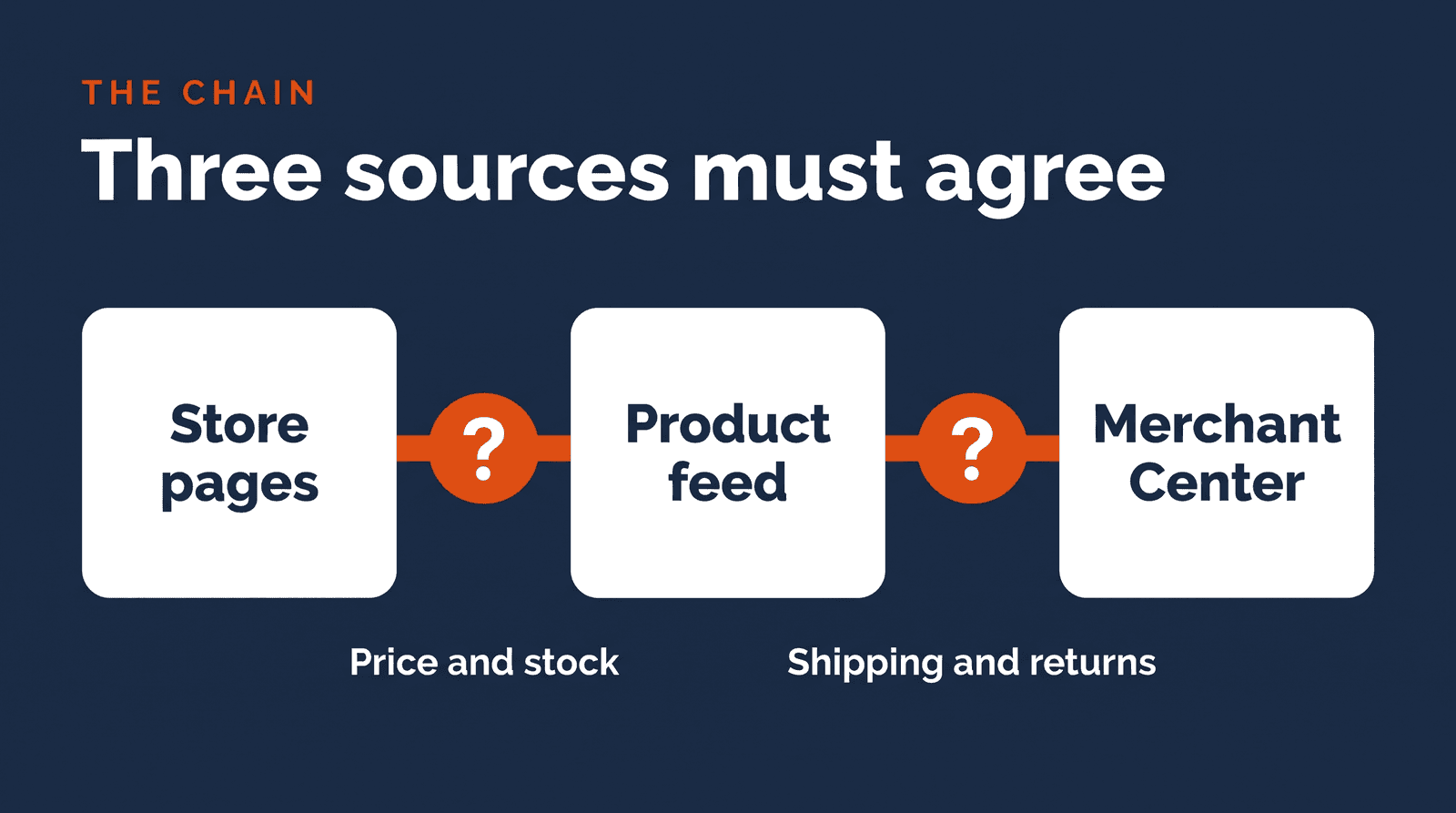
Google's own review guidance points the same way. Its pre-review checklist asks you to make contact information, shipping policies and return and refund details "clear, consistent, and easily accessible" in your site footer, to standardize your business name, address and contact details across your website, Merchant Center settings and payment profiles, and to confirm that pricing and availability in your feed "exactly match" your landing pages (Google Help).
Most advice you will find stops at the first row. The feed row is where a store with a clean-looking website can still fail, because shoppers see the page and Google also reads the data. In practice, inconsistencies between the three can be an important source of risk, which is why they are worth checking before you ask for a review.
What I see most often in real stores
Google does not publish a ranking of causes, so this is my own experience from working on Merchant Center accounts, not a Google statement. The pattern is usually the same: the store is not finished, or it does not tell one consistent story.
A site that is incomplete or technically off. Broken links, missing pages, and now and then something bigger. I have seen a store where Googlebot was blocked in robots.txt. The owner did not know. If Google cannot reach your pages, it cannot verify anything about your store, so this is worth checking before anything else. See also the decoder page for landing pages that cannot be accessed.
Contact details that are missing or inconsistent. Sometimes the information is only partly there. More often it is there but different in different places: the address on the website is not the address on the Google Business Profile, and the social media accounts say something else again. Address and contact details must be correct and the same across every source a shopper or Google can find. The decoder page on missing contact information shows what to add.
Product content copied from the supplier. Text and photos, taken over as they are. On its own this is usually not the problem. Combined with the issues above, it is part of a store that looks unfinished and not like a business with its own identity. I see many stores that never take the trouble to change supplier data. If you do spend the time, you can write for your own audience and visitors, and that is also what makes your store stand out from every other shop selling the same product.
Fix the cause: the diagnosis in order
Work through these in order. Write down what you change, because you will need it for the review.
1. Start with the exact issue. Do not guess. The policy Merchant Center names is the one the review will test.
2. Walk the store as a first-time visitor. Open the homepage, a category, a product, the cart and the checkout. Can you tell who runs the store, where they are, how to reach them, what shipping costs, how long it takes and how returns work? A policy page that exists but contradicts what the checkout does is worse than no policy page. Check robots.txt and broken links in the same pass, and compare your address and contact details with your Google Business Profile and social media.
3. Compare ten products, feed versus page. Pick products from different categories, including a variable product and one that is nearly out of stock. Compare price, currency, availability and shipping. One mismatch is a bug. A pattern across many products reads very differently.
4. Compare Merchant Center settings with what the site promises. Business information, shipping settings and return settings should match the pages a shopper reads.
5. Check every offer and claim a shopper can see. Google's policy covers dishonest pricing and transaction conditions, unavailable offers and unreliable claims. Anything you promise on the page has to be something you can keep.
6. Look at your product content. If titles, descriptions and photos are copied from the supplier, start with your best sellers and rewrite them for your own audience. It will not fix a suspension on its own, but it removes one more reason for the store to look unfinished.
This is the part of the work I cover in the Shopping Fix: I fix the causes on my side of the fence, which are your feed, your Merchant Center settings and the store pages Google checks, and I prepare the evidence for the review. Whether an account is reinstated is Google's decision, so I do not sell a reinstatement guarantee.
Where inconsistencies show up per platform
Google does not publish a per-platform list of causes. The points below are practical checks based on how stores are typically built, not official causes. Treat them as places to look, not as a diagnosis.
WooCommerce. Caching can leave an old price or stock status on a page while the feed shows a newer one. Variable products have price ranges on the page and a single price per variant in the feed, so compare the variant, not just the parent. Stock status on the page and availability in the feed should change together. Placeholder text on policy pages is easy to miss.
Shopify. Check that the policy pages are filled in with your actual terms and linked in the footer. If you use the Google and YouTube app, check the shipping and returns settings it sends to Merchant Center against your store settings.
Magento and other platforms. The same three comparisons apply: pages, feed and Merchant Center settings. Custom themes and multi-store setups are the typical places where one of the three drifts.
If your feed tool or plugin depended on the Content API for Shopping, note that Google sunset it on 18 August 2026, with progressive errors from 1 September 2026. A feed that quietly stops updating can make prices and stock in the feed drift away from your pages. The Content API article explains how to check whether you are affected.
How to request a review
Request a review only when the checks above are done.
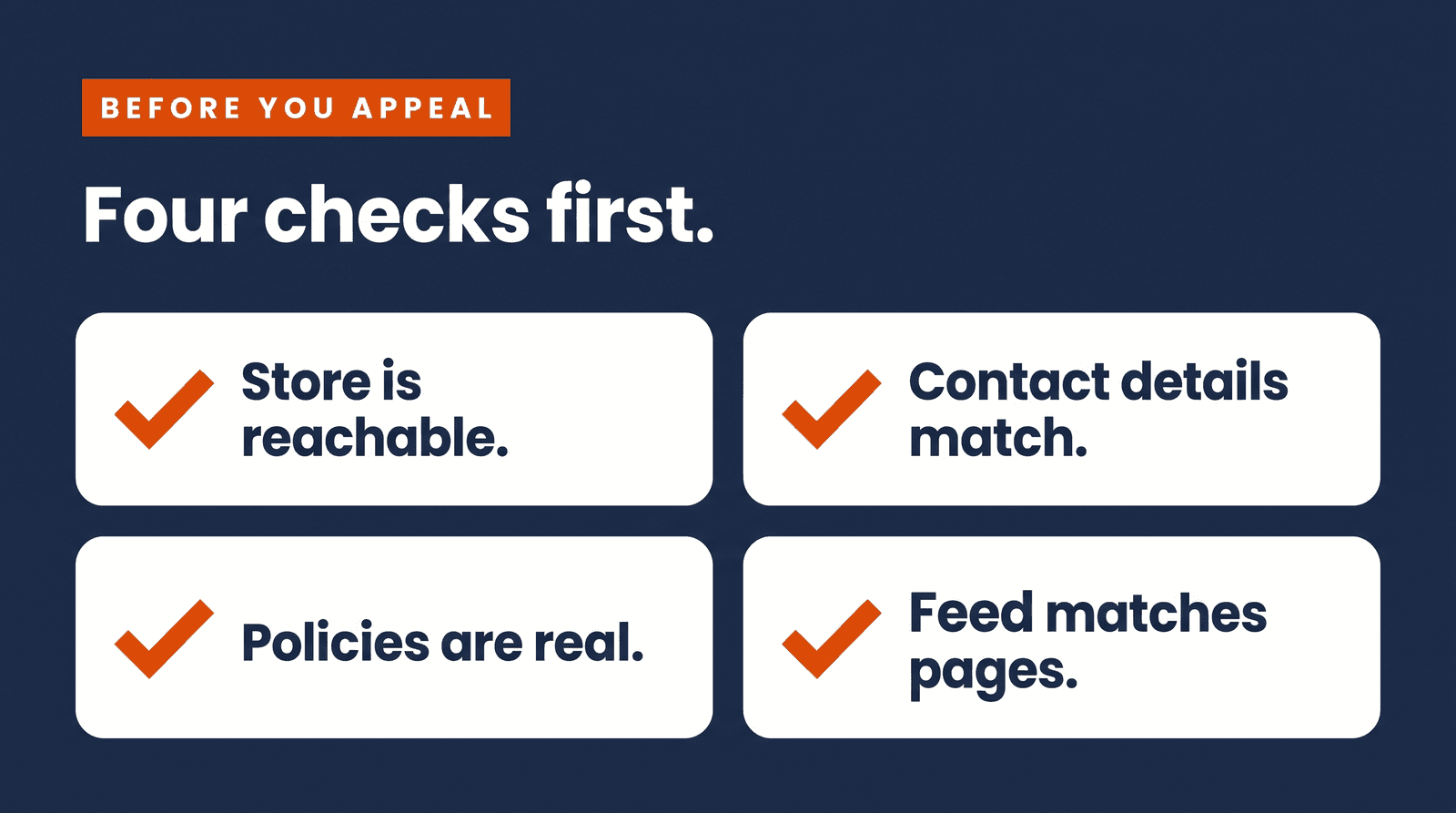
- Verify your identity first if asked. Google says you must upload clear, government-issued IDs or business registration documents, and that this is often a required step before you can request a review of an account-level suspension.
- Tell the reviewer what changed. In plain language, in a short list: which pages you added or rewrote, which details you made consistent, which feed values you corrected. You are showing that the cause is gone, not arguing that the problem never existed.
- Think twice before disputing. Google says you can request a review if you fixed the issue or believe there is an error, and that you may only have one chance to disagree with the issue. Only use that option if you are sure the issue is wrong.
- Wait. Google says to wait 7 business days, and that reviews may take up to 7 business days. Another Google help page says 3 to 7 business days. You will get an email when you request the review and when it is done.
Think of the review request as a limited opportunity to show that the underlying issue has been resolved, not as a message to persuade Google to overlook it. The wording matters less than whether the store, the feed and the settings now agree.
My advice is simple. Make sure every issue is really solved, and solve as many underlying causes as you can, as well as you can, before you press the button. If you request a review without significant improvements, you use up your review attempts quickly. Google does not publish a number, but professionals in this field, myself included, generally see about three attempts before an account is permanently banned. Treat that as a rule of thumb from practice, not as a Google policy or a guarantee. Until then the process can take very long, and every failed attempt brings you closer to the end of it. Do not rush it. Haste rarely helps here, and a few extra days of fixing is cheaper than a failed review.
What happens after an unsuccessful review
If the review fails, you may get another chance, but Google can then apply a cool down. Google says you will have opportunities to request a review before a cool down starts for further reviews, and that its support cannot bypass or shorten the cool down (Google Help). In Google's words, "with each unsuccessful re-review afterwards, an increase of the cool down period may be applied," and during the cool down "the review button will be disabled and your account will remain suspended" (Google Help).
So a failed review is not a reason to resubmit the same message. Use the cool down to widen the audit. Re-read the issue, look again at the feed and the Merchant Center settings, fix what you find, and request once more when the button is available. This is why the order matters: every review request you spend on an unfinished store makes the next one slower.
And do not delete the account. Google states: "If your account is suspended, deleting it will not resolve the suspension. If you create a new account for the same business, it is likely to be suspended as well."
Suspended again after reinstatement
Google does not publish why some accounts are suspended again. A practical explanation, and not something Google states, is drift: the store changes after the review and the three sources stop agreeing again. New suppliers, a plugin update, a price sync that fails, a new promotion, a policy page edited without updating Merchant Center settings.
The fix is boring and works: a short monthly check. Compare ten products between feed and page, confirm your footer links and contact details, and confirm that Merchant Center shows no new warnings. Ten minutes, once a month, is cheaper than a second suspension.
Fix it yourself, buy an appeal, or fix the cause
You have three routes, and they are not the same product.
Fix it yourself. The checks in this guide are enough for many stores. It costs time, and it works if you are willing to compare your own data critically.
Buy an appeal. Appeal-focused services range from gigs on freelance marketplaces at roughly $10 to $400 to specialist services listing about $599 to $3,500 (published prices I checked in September 2026, from a small sample, and not like for like). An appeal-only service and a full remediation are different things. Low-cost appeal services may not include fixing the cause, so ask what exactly is included, and be wary of anyone who guarantees reinstatement. Google decides. My view: a review is decided on whether the issues are actually solved, so a well-written appeal on top of an unfixed store just spends an attempt.
Fix the cause. This means working through the three sources, correcting what disagrees, and then requesting the review once with evidence. It takes longer than writing an appeal and it is the only route that also protects you from the next suspension.
What to do today
Pick ten products. For each, put the product page and the feed row side by side and compare price, currency, availability and shipping. Then open your footer and check that your business details, return policy and shipping policy are there, linked and true.
That ten-minute check shows whether the problem sits in your pages, your feed or your settings, and it tells you whether you are ready to request a review. If you would like a second pair of eyes on it, send me your store and I will look at your product feed and Merchant Center for free.
About the author

Auke Jongbloed
Auke Jongbloed is a Google Shopping and product feed specialist. He builds a product feed manager for WooCommerce, and works directly with ecommerce store owners on Google Shopping and Performance Max setups via aukemarketing.com. Follow him on LinkedIn for more on Google Shopping and feed strategy.
Free feed review
Get the 5 biggest fixes for your Shopping feed
Send me your store and I look at your product feed and Merchant Center. Within 3 business days you get the 5 biggest fixes, in plain language. Free, 5 reviews per month, no commitment.
Get your free feed review