Disapproved Products in Google Merchant Center: Causes and Fixes
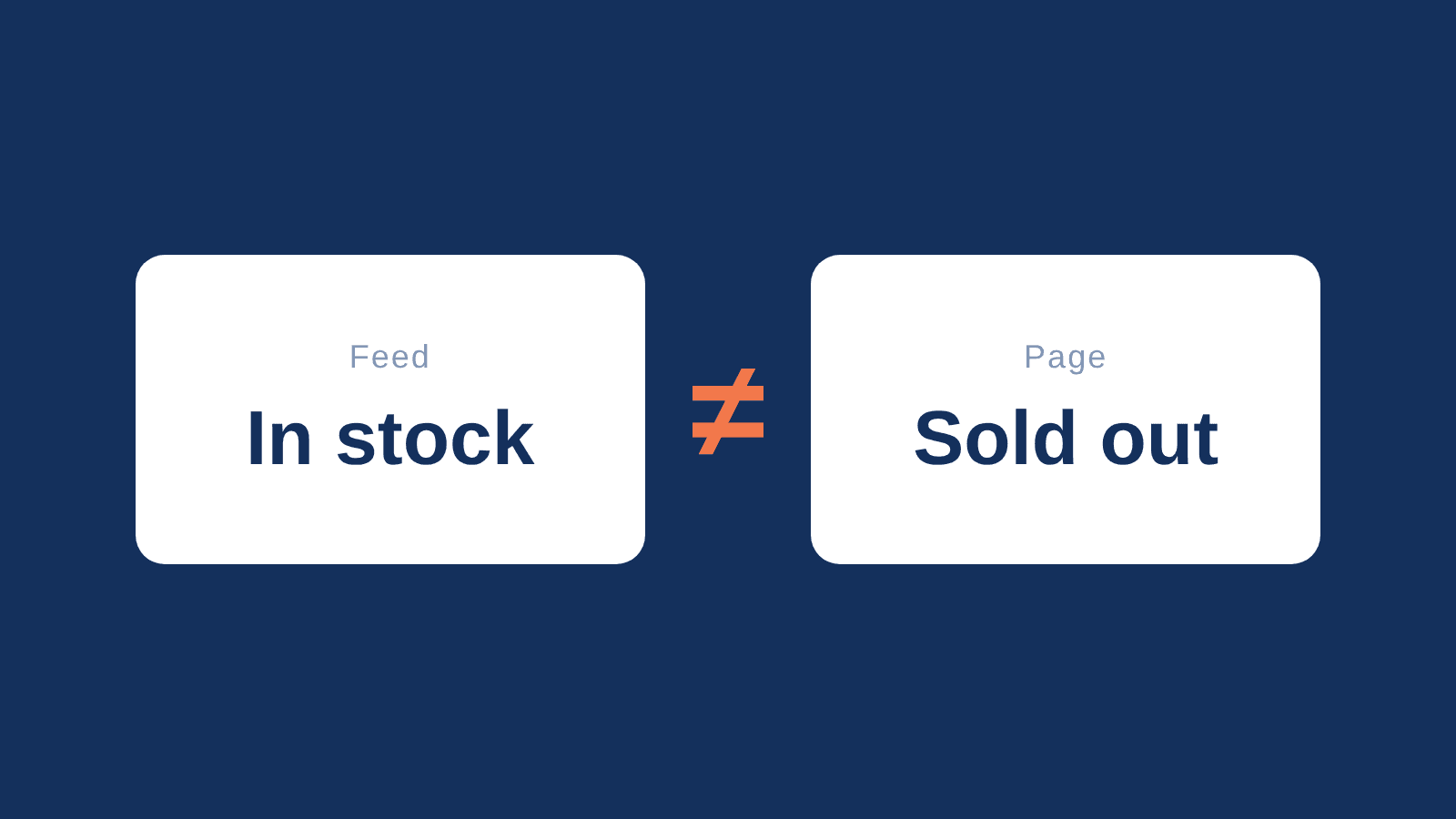
In a recent feed review of a store with about 2,000 products, 55 percent of the items said "in stock" in the feed while the shop said backorder or sold out. Prices matched on every item. Nothing in the feed looked broken.
That is how most disapprovals start. Not with a dramatic error, but with a small difference between what your feed says and what Google finds on your product page. Google compares the two. When they disagree, it can disapprove the product, sometimes as a precaution before a shopper ever notices.
In my reviews, many owners leave disapproved products as they are. Fixing them feels like a lot of work, and a few dead products seem affordable. But a disapproved product stops showing across Google. It cannot sell.
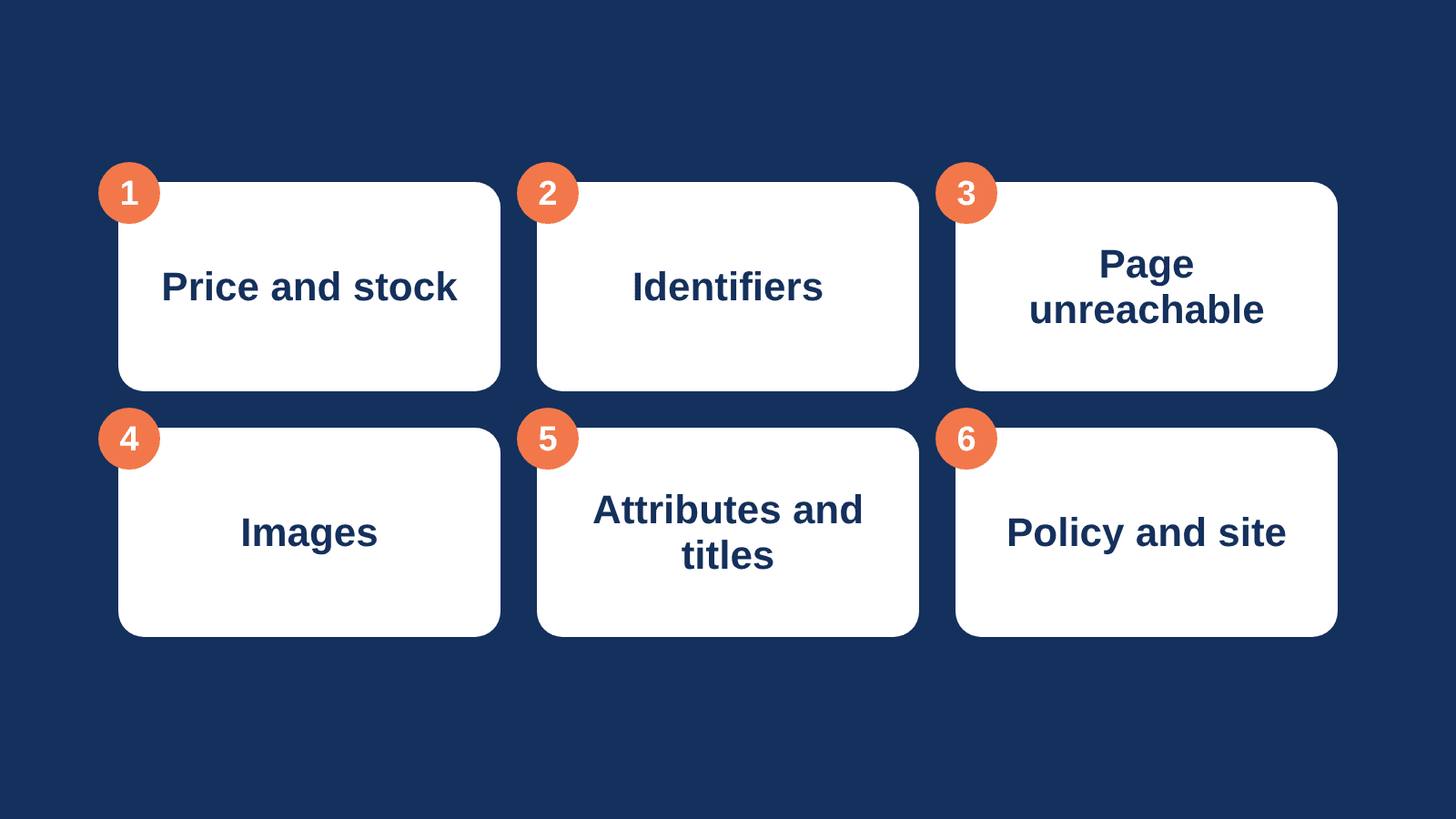
This guide is the overview I would want an owner to have. It covers the six causes I see most, what each one means, how to check it, and how to fix it. Each block links to a deeper guide.
Key insights
- A disapproved product stops showing across Google. A warning does not, but it can limit reach. Read the exact issue title first.
- Most disapprovals come from a small mismatch between your feed and your product page, not from a dramatic error.
- In my reviews, price and availability mismatches and missing identifiers are the two biggest causes.
- Many attribute problems only limit performance, so nobody notices them.
- Fix the biggest group first. One cause often explains hundreds of products.
Start with what Google is telling you
Merchant Center splits problems into two kinds. Product-level issues affect individual products. Setup and policy issues affect your whole account.
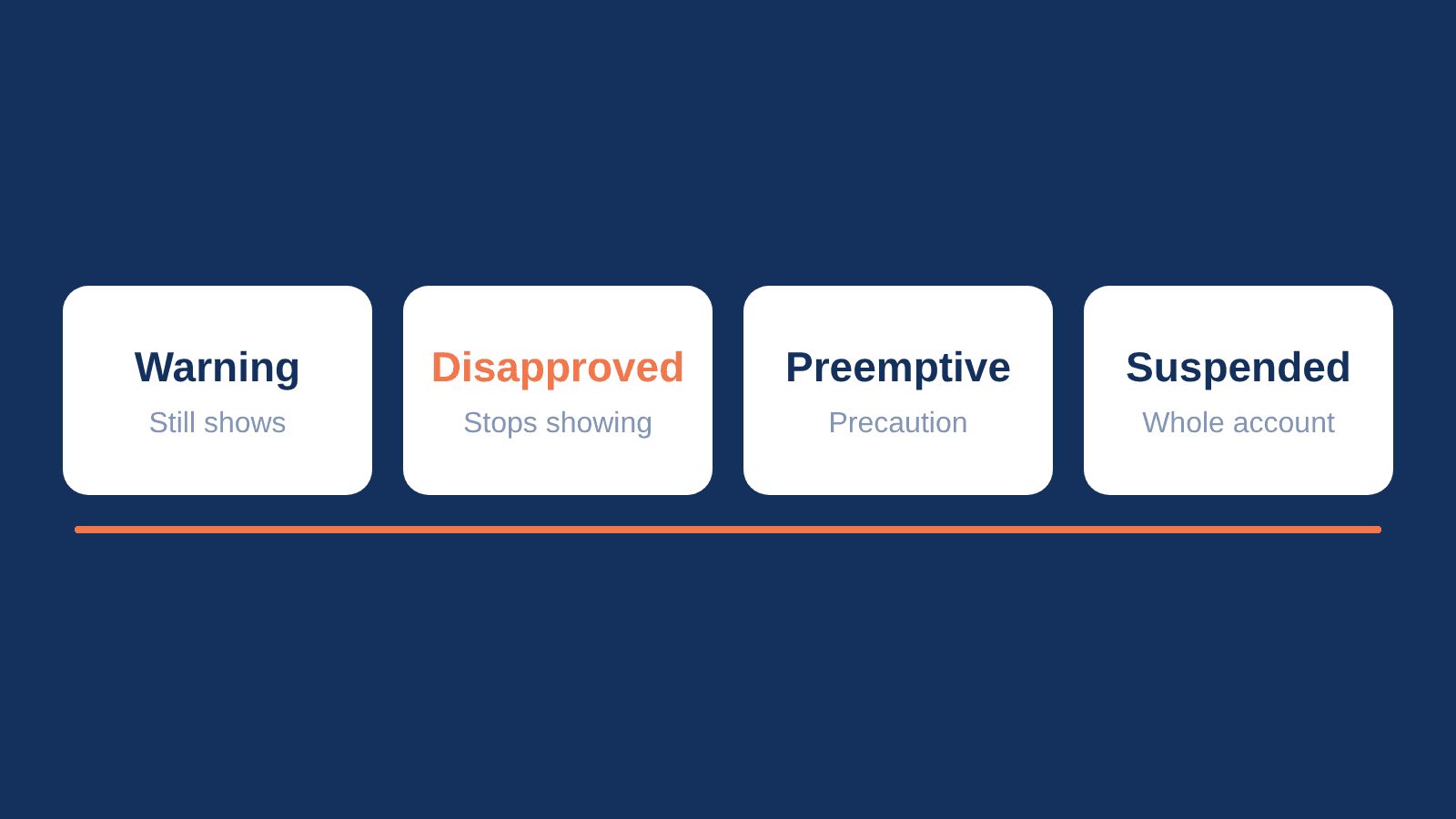
Four statuses matter:
- Warning: the product keeps showing, but its performance may be limited.
- Disapproved: the product stops showing across Google.
- Preemptive disapproval: Google disapproves a product as a precaution when its price or availability is likely to be wrong.
- Suspension: the account is suspended and no products show. This is a different problem, covered in the suspension guide.
All product-level issues live under Products, in the Needs attention tab. Filter by issue, and download the list as a CSV. Google may name these menus differently as Merchant Center changes, so look for the issue list if the path has moved.
Here is the habit that saves the most time: count products per issue title in that CSV, and start with the biggest group. One cause, like a feed that writes "in stock" for everything, can explain hundreds of rows.
When you fix product data, upload it again and the disapproval clears if the review succeeds. Setup and policy issues work differently: you fix the store, then request a review, which can take up to 7 days.
Bron: https://support.google.com/merchants/answer/12153802
1. Price or availability does not match your product page
What it means. Google visits your product page and compares the price and availability it finds with your feed. If they differ, you get a warning, or Google disapproves the product as a precaution. Deeper guide: Mismatched value (page crawl): price and Preemptive item disapproval.
Why it happens. Google names the usual causes itself:
- A sale starts or ends on the site, but the feed is not updated.
- The price in the page's structured data differs from the price a shopper sees.
- Prices depend on the visitor's location.
- Preorder or sold-out items are listed as in stock.
- Variants have different availability than the feed says.
In my reviews the pattern is simpler: the feed writes "in stock" for everything. In the store I mentioned, 1,124 of about 2,000 items said "in stock" while the shop showed 898 as backorder and 226 as sold out. Google treats backorder loosely, but a sold-out product listed as in stock is a real mismatch. Another cause I see in support: a scheduled feed refresh that silently stops running, so every price change after that day is missing. See 5-minute freshness check.
Merchant Center can also correct small mismatches for you. These automatic item updates cover price, sale price, availability and condition, and they are on by default. Google is clear that they do not replace regular uploads. They may not work for products whose price or availability changes more than once a day, and then the product can be disapproved instead of updated.
How to check.
- In Needs attention, filter on the price and availability issues and open one product.
- Compare three things: the value in your feed, the price and stock shown on the page, and the price in the page's structured data.
- Then compare the whole feed with the live shop, not one product. Export the feed and count how many items say "in stock" against what the shop shows. A single wrong product is a mistake. A pattern is a setting.
How to fix.
- Change the page and the feed at the same time. If your site shows a sale, the feed needs the sale price and the sale dates to match.
- Map availability to your real stock status, including backorder and sold out, instead of writing one value for every item.
- If prices change often, refresh the feed more often, or use an API connection built for frequent price updates.
- Upload again, then request a review.
Expect these waits, according to Google: an availability fix is re-crawled usually within 24 to 48 hours. A price review takes 7 business days, and a failed price review adds a 7 business day cooldown. So fix the cause before you ask.
2. Missing or wrong product identifiers (GTIN, MPN, brand)
What it means. Google uses identifiers to match your product to the products it already knows. When the GTIN, MPN or brand is missing, or not recognized as valid, the product is either disapproved or shown with limited performance. Which one depends on the country and the product category, so read the exact issue title in Needs attention. Deeper guides: Missing value: GTIN, Invalid value: GTIN, Missing value: MPN.
Why it happens. In my reviews this is the most common cause, along with price and availability. The patterns repeat:
- The GTIN column is empty. In one store, 1,063 of about 2,000 items had no GTIN and were marked "identifier exists: no".
- The feed says identifiers exist, but the GTIN is missing. In another store, 93 of 378 items did that.
- One GTIN is used on several products, or a number has the wrong length.
- The brand is missing, or the GTIN does not belong to the brand.
It is also the cause owners most often leave alone. The barcode is the hardest data to get. You call the supplier, and sometimes the supplier's supplier, and they do not always answer. Some products have no barcode at all. So the problem stays in the account.
How to check.
- In Needs attention, filter on the identifier issues and download the CSV.
- Open your feed in a spreadsheet. Sort the GTIN column. Look for blanks, the same number on several products, and numbers with an odd length. To check a whole list at once, paste it into my free GTIN Checker. It runs in your browser and sends nothing. It flags wrong check digits, Excel damage, internal store codes, coupons, made-up numbers and duplicates, each with the reason and what to do.
- Check the "identifier exists" column against reality. Does any product marked "no" actually have a barcode?
- The GTIN Checker tells you whether a number is valid. To check that a GTIN belongs to the right brand, use the free GS1 lookup. It shows which company licensed the number. It is capped at 30 searches a day, and what it returns depends on what the brand owner supplied. If a number is not found, ask your supplier. Do not assume it is fake.
How to fix, in this order.
- Get the real GTIN from the packaging, the manufacturer or your supplier. Google requires the number the manufacturer assigned. Never invent one or copy it from another product.
- If a standard product has no GTIN, send both the MPN and the brand. Google accepts that.
- Set "identifier exists" to false only when the product truly has no identifier, such as a one-of-a-kind or vintage item. If you set it to false while an identifier exists, Google can show a warning.
- Upload again and check that the issue has left Needs attention. Google says that update can take some time to show.
3. Google cannot reach your product page
What it means. If your product page is unavailable when Google checks it, the product is disapproved. The same applies when the site itself is unreachable: an expired or parked domain, error pages, or temporary downtime. Deeper guide: Landing page not accessible.
Why it happens.
- The page returns an error, because the product was deleted or the address changed, but the product is still in your feed.
- Google's crawlers are blocked. Google tells you to allow its crawlers in robots.txt. A firewall or bot protection can do the same thing without touching robots.txt.
- The shop was down or in maintenance mode at the moment of the check, for example during a big sale.
This one is easy to miss. The page opens fine for you, so you assume it opens for Google.
How to check.
- Filter Needs attention on the page-related issues and open a few of the affected product addresses in a private browser window.
- Test an address in Search Console's URL Inspection tool, which shows what Google sees.
- Read your robots.txt, and check what your firewall or bot protection does with Google's crawlers.
- Compare the product addresses in your feed with the live shop. Which ones return an error or redirect to the homepage?
How to fix. Restore the page or redirect it to the right product. Take products you no longer sell out of the feed. Let Google's crawlers in. Switch off maintenance mode when the feed is live. Google also advises setting the crawl rate to "Let Google optimize for my site". After the fix, a fresh crawl starts when you request a review. Changing a product ID counts as a new product and can take up to 3 business days to be approved again, so avoid changing IDs for no reason.
4. Images Google will not accept
What it means. Images can cause a disapproval or only a warning. Which one depends on the problem. Deeper guides: Promotional overlay on image, Image too small.
- Disapproval: an image below the current minimum (100 x 100 pixels, 250 x 250 for clothing), a generic image such as a logo or "no image available", or a promotional overlay such as a logo, a call to action or a watermark.
- Warning: an image above today's minimum but smaller than 500 x 500 pixels. Google labels it "Image too small for upcoming enforcement".
- No block: Google's page on low image quality says the product continues to show.
The date to know. From 31 January 2027, the minimum becomes 500 x 500 pixels for all categories. Google will optimize some smaller images automatically, and marks them with a warning. Do not count on it. Send a larger image instead.
Why it happens. In my reviews it is usually one of two things. A product has no image at all: in one account, 2 of the 27 products that were not approved. Or the main image shows the wrong thing: in another review I flagged 9 of about 200 products where it did. Neither was a disapproval yet, but both are risks. Also worth checking: whether your feed sends the small thumbnail of a picture instead of the original.
How to check. Filter Needs attention on the image issues. Look at the image address column in your feed: blanks, small files, and badges or text baked into the picture, such as a "Sale" sticker.
How to fix. Replace the image with a larger, clean photo of the product. It should fill roughly 75 to 90 percent of the frame. Do not scale up a small picture or use a thumbnail. Keep the file under 16 MB. Then upload again. Google says changes can take 24 to 72 hours to show in Needs attention.
5. Missing required attributes and weak titles
What it means. Many attribute problems do not disapprove the product. Google marks them as limited performance. The product keeps showing, but with less reach. Because nothing is switched off, nobody notices. Deeper guides: Missing apparel attributes: age group and gender, Excessive capitalization in title, Invalid value: ID.
Google lists these as limited performance:
- A missing brand, or a placeholder such as "N/A" or "Generic".
- An invalid Google product category. Use the numeric ID or the full category path.
- A GTIN that conflicts with the brand.
- Excessive capitalization in titles.
- Missing apparel attributes: gender, size, color and age group.
Why it happens. The data exists in the store, but the feed does not pick it up. In one clothing store, none of the 574 products had color, size, gender or age group. In another, 2,398 variations had no color or size. In both cases the information was on the product pages. It never reached the feed.
How to check. Filter Needs attention on the limited performance issues. Then open the feed in a spreadsheet and look for blank columns: brand, color, size, gender, age group, category. A column that is empty for the whole catalog is a mapping problem, not a product problem.
How to fix. Map the store field to the feed field. If the whole catalog has one answer, for example every product is for adults, use a fixed value instead of filling it product by product. Group variants with a shared item group ID. Use the real brand name, and write titles in normal capitalization.
Bron: https://support.google.com/merchants/answer/13693497
6. Policy and website requirements
What it means. Some products are disapproved because of what they are, not because of the data. Other disapprovals come from the website around them. Both appear in Needs attention. Deeper guides: Untrustworthy promotions, Missing contact or business information, Insecure or missing HTTPS checkout.
Product policy. Google groups its Shopping policies into prohibited content (for example counterfeit and dangerous products), prohibited practices (including misrepresentation), restricted content (for example alcohol, healthcare and medicines, trademarks) and site requirements. Google announced in July that the Shopping ads and free listings policies would be merged into one set in September, with no intended substantive changes. Some policies still apply only to Shopping ads. If most of your offers are flagged for misleading or unrealistic claims, Google can disapprove the whole account.
In one account I reviewed, 4 of the 33 products that were not approved were policy cases: two prescription medicines, one animal medicine and one supplement. No feed fix helps there. The right move is to leave those products out of the feed on purpose.
Website requirements. Google can disapprove products when the site has:
- Broken navigation, missing policy pages or placeholder text.
- Contact details that are missing or do not match your Merchant Center account.
- A return and refund policy that is empty, incomplete or hard to find.
- A login that is required before shoppers can browse.
- A checkout that does not work, or asks for non-standard fields such as a VAT ID on a normal purchase.
How to check. Read the policy name in the issue. Then look at your own site the way a stranger would: find the contact details, the returns page and the checkout, and compare them with your Merchant Center settings.
How to fix. Fix the website, or remove the products Google does not allow. Then request a review, or appeal if you believe the disapproval is wrong. Fixed product data is re-reviewed automatically. Account reviews typically take 7 business days. If the problem looks bigger than a few products, read the misrepresentation guide.
When it is not a product disapproval
Sometimes the problem is bigger than any single product. Setup and policy issues affect all products in your account, and they show in a banner at the top of Merchant Center. If every product is disapproved at the same moment, look here first, and look for one shared cause: an account issue, a feed that Google could not fetch, or a site that Google cannot reach.
Setup and policy warnings come with a warning period. If you do not request a review during that period, Google reviews the account again at the end of it. If the issue is not resolved, the account is suspended and no products show. Egregious violations can lead to suspension without a warning.
Suspension has its own guides: what to do in the first 48 hours after a suspension, how to fix the cause of a misrepresentation suspension and four ways out of a misrepresentation suspension, compared.
Approved, but still not showing
Approved is not the same as visible. A product can be approved and still get no impressions. That is a different problem, with different causes, so do not look for it in this list.
What to fix first
Order by how much revenue one hour of work protects. This is my judgment, not a Google ranking.
| Order | Problem | Why it sits here |
|---|---|---|
| 1 | Account-level issue or suspension | It stops every product at once |
| 2 | One cause behind many products | Fixing one setting can clear hundreds of rows |
| 3 | Price and availability mismatch | Google can disapprove ahead of time, and a failed price review adds a 7 business day wait |
| 4 | Page unreachable | The product cannot show until Google can open the page |
| 5 | Identifiers (GTIN, MPN, brand) | The most common cause in my reviews, and the slowest to fix because the data comes from suppliers |
| 6 | Images | Disapproval for missing, generic or overlaid images, and a new minimum from 31 January 2027 |
| 7 | Attributes and titles | Often limited performance: less reach, but nothing is switched off |
| 8 | Policy products | Decide on purpose: fix the site or leave the product out |
One thing to do this week
Open Needs attention, download the CSV, and fix the one issue that affects the most products first. One cause usually explains most of the rows.
If you are not sure what your list is telling you, send it to me. I will look at it in a free Feed Review: free Feed Review.
Sources
Google Merchant Center Help and GS1, checked on 9 November 2026. Google changes these pages, so check the date before you rely on a number.
- Issues in Merchant Center
- Tips to help your products stay approved
- How to fix: Inaccurate price status due to inconsistency between feed and landing page
- How to fix: Inaccurate availability status due to inconsistency between feed and landing page
- Allow Merchant Center to update product information automatically
- How to fix: Missing or incorrect GTIN
- Identifier exists [identifier_exists]
- How to fix: Limited performance due to missing value: GTIN [gtin]
- How to fix: Image too small
- Merchant Center product data specification update 2026
- How to fix: Low image quality [image_link]
- Fixing Merchant Center disapprovals for product data quality violations
- Editorial and professional requirements
- Google's Shopping ads and listings policies
- Merchant Center announcements change log
- GS1 Database (company lookup)
- How do I check if a GS1 GTIN is valid?
Frequently asked questions
What does "disapproved" mean in Merchant Center? A disapproved product stops showing across Google. A warning is different: the product keeps showing, but its performance may be limited. Open the product in Needs attention to see which issue caused it.
Why are all my products disapproved at once? Look for one shared cause. Setup and policy issues affect all products in the account. A site that Google cannot reach, or a feed that was not fetched, can do the same. Check the banner at the top of Merchant Center first.
How long does it take for a disapproved product to be approved again? It depends on the issue. For availability, Google says a fresh crawl usually finishes within 24 to 48 hours. A price review takes 7 business days. A changed product ID can take up to 3 business days, and account reviews can take up to 7 days.
Can I fix many disapproved products at once? Yes. In Needs attention, filter on the issue and download the CSV. Correct the affected products in your product data and upload it again. Fixing the source of the data is faster than editing products one by one.
Is a missing GTIN a disapproval? It depends on the country and category. Google reports it as either a disapproval or limited performance, so read the exact issue title. If a standard product has no GTIN, send the MPN and the brand. Set "identifier exists" to false only when the product truly has no identifier.
About the author

Auke Jongbloed
Auke Jongbloed is a Google Shopping and product feed specialist. He builds a product feed manager for WooCommerce, and works directly with ecommerce store owners on Google Shopping and Performance Max setups via aukemarketing.com. Follow him on LinkedIn for more on Google Shopping and feed strategy.
Free feed review
Get the 5 biggest fixes for your Shopping feed
Send me your store and I look at your product feed and Merchant Center. Within 3 business days you get the 5 biggest fixes, in plain language. Free, 5 reviews per month, no commitment.
Get your free feed review